In Part 4, we mastered API integration for Claude Agent Skills. Now we explore enterprise deployment at scale. This guide covers organization-wide skill management, centralized administration, governance frameworks, and team collaboration patterns that enable consistent AI capabilities across your entire organization. Whether you manage a team of 10 or 10,000, these patterns will help you deploy skills efficiently and securely.
Understanding Enterprise Skill Management
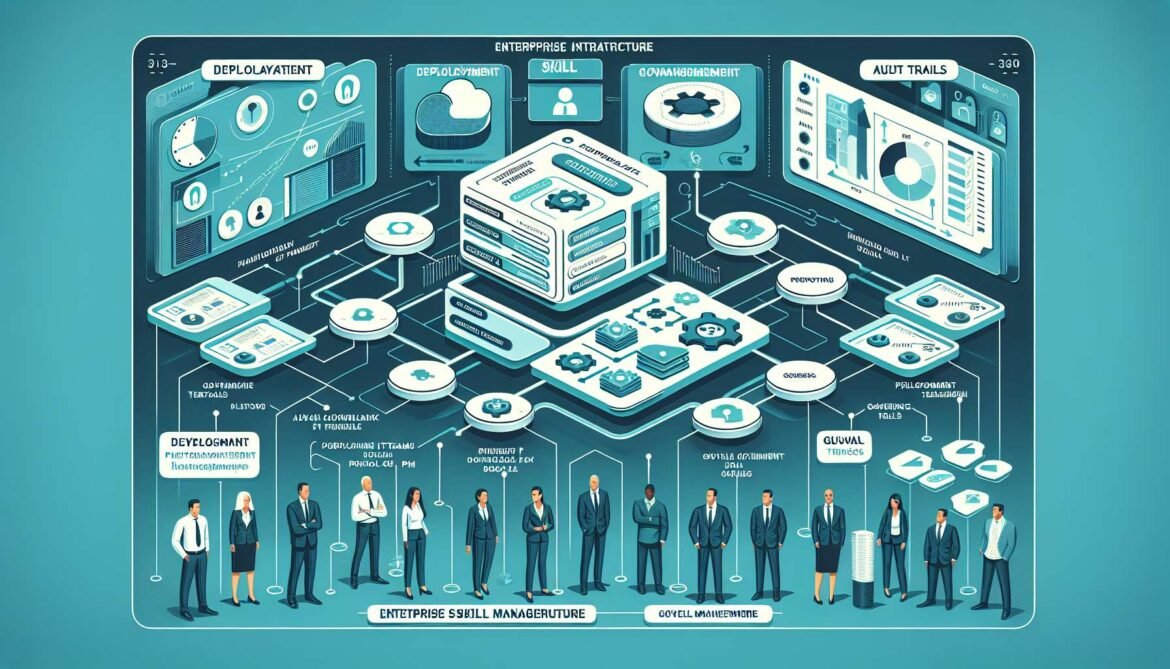
Enterprise deployment differs fundamentally from individual usage. Instead of each user manually uploading skills, administrators provision skills centrally, ensuring consistent workflows and approved capabilities across all team members. This centralized approach addresses a common enterprise blocker: fragmented, user-by-user prompts that lead to inconsistent outputs and governance challenges.
Organization-Wide Management Benefits
Centralized skill management, available on Team and Enterprise plans, provides several critical advantages:
- Consistent workflows across teams without manual distribution
- Centralized governance and compliance controls
- Simplified skill updates and version management
- Audit trails for skill usage and modifications
- Role-based access controls for sensitive operations
- Reduced onboarding time for new team members
- Organization-wide standards enforcement
According to Anthropic, admin-provisioned skills are enabled by default for all users, giving organizations consistent, approved workflows across teams while still allowing individual users to toggle specific skills off if they choose. This balance between organizational control and user flexibility is essential for enterprise adoption.
Prerequisites for Enterprise Deployment
Before provisioning skills organization-wide, ensure your environment meets these requirements:
Plan Requirements
- Claude Team or Enterprise plan subscription
- Organization Owner or Admin role
- Code execution feature enabled organization-wide
- Skills feature enabled in capabilities settings
Technical Requirements
- Skills require code execution to function properly
- If code execution is disabled, skills will not be available
- Both capabilities must be enabled before provisioning skills
Enabling Skills for Your Organization
The first step in enterprise deployment is enabling the necessary capabilities. Here is the complete process:
Step 1: Access Admin Settings
- Log in to Claude.ai as an Organization Owner or Admin
- Navigate to Admin Settings from the main menu
- Select the Capabilities tab
- Locate the Skills section
Step 2: Enable Required Capabilities
Toggle on these two capabilities in order:
- Code Execution (prerequisite for Skills)
- Skills (becomes available after code execution is enabled)
Once both capabilities are enabled, you can begin provisioning skills to your organization.
Provisioning Skills Organization-Wide
Organization administrators can provision skills through two primary methods: uploading custom skills or installing partner skills from the directory.
Method 1: Uploading Custom Organization Skills
Custom skills allow you to encode your organization’s specific workflows, brand guidelines, compliance requirements, and domain expertise.
Creating Organization Skills
Prepare your skill following the standard structure:
organization-brand-guidelines/
├── SKILL.md              # Main skill instructions
├── assets/
│   ├── logo.svg         # Company logo
│   ├── colors.json      # Brand color palette
│   └── fonts/           # Approved typefaces
├── references/
│   ├── style-guide.md   # Detailed guidelines
│   └── examples.md      # Good/bad examples
└── scripts/
    └── validate.py      # Brand compliance checker
Example SKILL.md for organization brand guidelines:
---
name: brand-guidelines
description: Apply company brand guidelines to all documents, presentations, and visual content. Use when creating marketing materials, presentations, reports, or any customer-facing content.
version: "2.1.0"
license: Proprietary
metadata:
  owner: "Marketing Operations"
  department: "Brand & Communications"
  last_updated: "2026-01-15"
---

# Company Brand Guidelines

## Purpose
This skill ensures all content created with Claude follows our brand standards for colors, typography, tone, and visual identity.

## Brand Colors

### Primary Colors
- **Corporate Blue**: #0066CC (RGB: 0, 102, 204)
- **Deep Navy**: #001F3F (RGB: 0, 31, 63)
- **Bright White**: #FFFFFF (RGB: 255, 255, 255)

### Secondary Colors
- **Accent Orange**: #FF6B35 (RGB: 255, 107, 53)
- **Warm Gray**: #6C757D (RGB: 108, 117, 125)
- **Light Gray**: #F8F9FA (RGB: 248, 249, 250)

See [detailed color specifications](references/style-guide.md#colors) for accessibility requirements and usage guidelines.

## Typography

### Primary Typeface
- **Headings**: Montserrat (Bold, SemiBold)
- **Body Text**: Open Sans (Regular, Medium)
- **Code/Technical**: Roboto Mono

### Font Sizes
- H1: 32px / 2rem
- H2: 24px / 1.5rem
- H3: 20px / 1.25rem
- Body: 16px / 1rem
- Small: 14px / 0.875rem

## Tone and Voice

### Brand Personality
- Professional yet approachable
- Clear and concise
- Confident without being arrogant
- Helpful and solution-oriented

### Writing Guidelines
- Use active voice whenever possible
- Avoid jargon unless writing for technical audiences
- Write in second person for user-facing content
- Keep sentences under 20 words when possible
- Use bullet points for lists of three or more items

## Logo Usage

### Minimum Size
- Digital: 120px width
- Print: 1 inch width

### Clear Space
Maintain clear space equal to the height of the logo around all sides.

### Incorrect Usage
Never:
- Stretch or distort the logo
- Change logo colors (use approved versions only)
- Place logo on busy backgrounds without sufficient contrast
- Rotate the logo at any angle

See [logo guidelines](references/style-guide.md#logo) for approved variations.

## Document Templates

### Presentations
- Title slide: Company logo top-left, presentation title center
- Content slides: Logo in footer, slide numbers bottom-right
- Maximum 6 bullet points per slide
- Use brand colors for charts and graphs

### Reports
- Cover page: Full-color logo, document title, date, department
- Headers: Company name in Open Sans Regular
- Footers: Page numbers, confidentiality notice if applicable

### Marketing Materials
- Hero sections: Corporate Blue background with white text
- Call-to-action buttons: Accent Orange
- Images: High-quality, professional, diverse representation

## Compliance Validation

Before finalizing any content, verify:
- All colors match brand specifications
- Fonts are from approved typeface list
- Logo usage follows guidelines
- Tone aligns with brand voice
- Legal disclaimers are included where required

Run the validation script for automated checks:
```
python scripts/validate.py --file output.pptx
```

## Examples

### Good Example: Presentation Title Slide
```
Background: Corporate Blue (#0066CC)
Logo: Top-left, white version, 200px width
Title: "Q1 2026 Results" in white Montserrat Bold 48px
Subtitle: "Financial Performance Overview" in white Open Sans 24px
```

### Bad Example: Presentation Title Slide
```
❌ Background: Random gradient
❌ Logo: Stretched, wrong colors
❌ Title: Comic Sans font
❌ Text: Yellow on light background (poor contrast)
```

## Additional Resources

For detailed specifications, consult:
- [Complete Style Guide](references/style-guide.md)
- [Brand Examples](references/examples.md)
- [Logo Files](assets/)

## Contact

Questions about brand guidelines? Contact:
- Brand Team: brand@company.com
- Design System Lead: design-system@company.com
Uploading to Admin Settings
- Package your skill directory as a ZIP file
- Navigate to Admin Settings → Capabilities → Skills
- Click “Upload Organization Skill”
- Select your ZIP file
- Review the parsed metadata (name, description, version)
- Optionally add deployment notes for your team
- Click “Provision to Organization”
The skill immediately becomes available to all users in Settings → Capabilities under Skills. Users will see it listed with an “Organization” badge indicating it was provisioned by an administrator.
Method 2: Installing Partner Skills from Directory
The Skills Directory provides pre-built, enterprise-grade skills from partners including Notion, Canva, Figma, Atlassian, Cloudflare, Ramp, and Sentry. These partner skills are production-tested and maintained by the partner organizations.
Available Partner Skills
- Notion: Knowledge management and documentation workflows
- Canva: Design and visual content creation with brand consistency
- Figma: Design-to-code translation with accuracy and consistency
- Atlassian: Jira ticket creation, status reports, Confluence integration
- Cloudflare: Deploy AI agents and MCP servers to Cloudflare’s edge
- Ramp: Financial workflows and expense management
- Sentry: Application debugging and error tracking
- Box: Cloud storage automation and document workflows
Installing Partner Skills
- Access Admin Settings → Capabilities → Skills
- Click “Browse Skills Directory”
- Filter by category (Productivity, Design, Development, Finance)
- Select a partner skill to view details
- Review capabilities, permissions, and requirements
- Click “Install for Organization”
- Configure any required integrations or permissions
- Confirm installation
Partner skills handle authentication and integration with their respective services. For example, installing the Notion skill requires connecting your organization’s Notion workspace and granting appropriate permissions.
Governance Framework Implementation
Enterprise deployments require robust governance to ensure skills are used appropriately, securely, and in compliance with organizational policies.
Establishing Governance Policies
1. Define Skill Categories and Risk Levels
Classify skills based on their risk profile:
Low Risk (Auto-Approve):
- Documentation and content creation
- Data analysis and reporting
- Design and visualization
- Read-only integrations

Medium Risk (Manager Approval):
- Database queries
- API integrations
- Customer data processing
- Financial calculations

High Risk (Security Review):
- Deployment automation
- Production system access
- Sensitive data manipulation
- External API calls with credentials
2. Skill Review and Approval Workflow
Implement a structured review process:
Step 1: Skill Proposal
- Requester submits skill proposal with business justification
- Include use cases, expected users, and benefits

Step 2: Technical Review
- Security team reviews code and dependencies
- Architecture team validates integration patterns
- Data privacy team assesses data handling

Step 3: Business Approval
- Department head approves resource allocation
- Compliance team confirms regulatory alignment

Step 4: Deployment
- Admin provisions skill to appropriate user groups
- Documentation added to internal knowledge base
- Training materials created if needed

Step 5: Monitoring
- Track usage metrics and adoption rates
- Collect user feedback
- Review quarterly for continued relevance
Role-Based Access Control
While Claude does not currently support granular role-based access at the skill level, you can implement governance through organizational structure:
Organization Structure Strategy
Engineering Organization:
- Skills: Code analysis, deployment automation, API testing
- Users: Engineering team members only

Marketing Organization:
- Skills: Brand guidelines, content creation, social media
- Users: Marketing team members only

Finance Organization:
- Skills: Financial reporting, expense analysis, budget tracking
- Users: Finance team members only

Shared Services Organization:
- Skills: General productivity, documentation, presentations
- Users: All employees
For companies requiring strict separation, create separate Claude organizations for different departments or security zones.
Skill Versioning and Lifecycle Management
Professional skill management requires systematic versioning and lifecycle practices.
Semantic Versioning for Skills
Adopt semantic versioning (MAJOR.MINOR.PATCH) for skill releases:
version: "2.1.3"

MAJOR (2): Breaking changes
- Skill behavior changes significantly
- Incompatible with previous usage patterns
- Requires user retraining

MINOR (1): New features
- New capabilities added
- Backward compatible
- Existing workflows continue working

PATCH (3): Bug fixes
- Error corrections
- Performance improvements
- No new features or breaking changes
Deployment Strategy
Phased Rollout Pattern
Phase 1: Development (1-2 weeks)
- Create skill in isolated environment
- Test with sample data
- Document usage patterns

Phase 2: Pilot (2-4 weeks)
- Deploy to small pilot group (5-10 users)
- Collect feedback and usage metrics
- Iterate based on real-world usage

Phase 3: Limited Release (4-6 weeks)
- Expand to department or division
- Monitor for issues at scale
- Refine documentation and training

Phase 4: General Availability
- Deploy organization-wide
- Announce via internal communications
- Provide support resources

Phase 5: Monitoring and Iteration
- Track adoption and satisfaction
- Plan updates based on feedback
- Schedule quarterly reviews
Version Control Integration
Maintain skills in version control for team collaboration:
repository-structure/
├── skills/
│   ├── brand-guidelines/
│   │   ├── SKILL.md
│   │   ├── CHANGELOG.md
│   │   ├── assets/
│   │   ├── references/
│   │   └── scripts/
│   ├── financial-reporting/
│   └── code-review/
├── docs/
│   ├── governance-policy.md
│   ├── deployment-guide.md
│   └── skill-creation-guide.md
├── tests/
│   └── skill-validation/
└── README.md
Git Workflow Example
# Create feature branch for new skill version
git checkout -b skill/brand-guidelines-v2.2.0

# Make changes to skill
# Update SKILL.md, add new assets, etc.

# Update CHANGELOG.md
echo "## [2.2.0] - 2026-01-20" >> CHANGELOG.md
echo "### Added" >> CHANGELOG.md
echo "- New social media guidelines" >> CHANGELOG.md
echo "- Updated color palette with accessibility improvements" >> CHANGELOG.md

# Commit changes
git add .
git commit -m "feat(brand-guidelines): Add social media guidelines v2.2.0"

# Create pull request for review
git push origin skill/brand-guidelines-v2.2.0

# After approval, merge to main
# Admin packages and deploys from main branch
Monitoring and Analytics
Track skill usage and effectiveness to demonstrate ROI and identify improvement opportunities.
Key Metrics to Track
Adoption Metrics
- Number of users with skill enabled
- Percentage of eligible users actively using skills
- Time to adoption (from deployment to first use)
- Usage frequency per user
Efficiency Metrics
- Time saved per task compared to manual process
- Error rate reduction
- First-time-right percentage improvement
- Review cycle time reduction
Quality Metrics
- Brand compliance rate
- Consistency scores across team outputs
- Revision requests before approval
- User satisfaction ratings
Implementation: Usage Tracking
While Claude does not provide built-in usage analytics at the skill level, you can implement tracking through the API:
Python: Usage Logging Wrapper
import os
import json
from datetime import datetime
from anthropic import Anthropic
from pathlib import Path

client = Anthropic(api_key=os.environ.get("ANTHROPIC_API_KEY"))

class SkillUsageTracker:
    """Track skill usage for analytics and governance"""

    def __init__(self, log_directory='./skill-usage-logs'):
        self.log_dir = Path(log_directory)
        self.log_dir.mkdir(exist_ok=True)

    def log_skill_usage(self, user_id, skill_ids, request_type, metadata=None):
        """Log skill usage event"""
        log_entry = {
            'timestamp': datetime.utcnow().isoformat(),
            'user_id': user_id,
            'skill_ids': skill_ids,
            'request_type': request_type,
            'metadata': metadata or {}
        }

        # Write to daily log file
        log_file = self.log_dir / f"skill-usage-{datetime.utcnow().date()}.jsonl"
        with open(log_file, 'a') as f:
            f.write(json.dumps(log_entry) + '\n')

    def get_usage_stats(self, start_date, end_date):
        """Generate usage statistics for date range"""
        stats = {
            'total_requests': 0,
            'unique_users': set(),
            'skill_usage': {},
            'requests_by_type': {}
        }

        # Process log files
        for log_file in self.log_dir.glob('skill-usage-*.jsonl'):
            with open(log_file, 'r') as f:
                for line in f:
                    entry = json.loads(line)
                    timestamp = datetime.fromisoformat(entry['timestamp'])

                    if start_date <= timestamp.date() <= end_date:
                        stats['total_requests'] += 1
                        stats['unique_users'].add(entry['user_id'])

                        for skill_id in entry['skill_ids']:
                            stats['skill_usage'][skill_id] = \
                                stats['skill_usage'].get(skill_id, 0) + 1

                        req_type = entry['request_type']
                        stats['requests_by_type'][req_type] = \
                            stats['requests_by_type'].get(req_type, 0) + 1

        stats['unique_users'] = len(stats['unique_users'])
        return stats

# Example usage
tracker = SkillUsageTracker()

def create_message_with_tracking(user_id, skill_ids, user_query):
    """Create message and track usage"""
    # Log the usage
    tracker.log_skill_usage(
        user_id=user_id,
        skill_ids=skill_ids,
        request_type='document_creation',
        metadata={'query_length': len(user_query)}
    )

    # Make API call
    response = client.beta.messages.create(
        model='claude-sonnet-4-5-20250929',
        max_tokens=4096,
        betas=['code-execution-2025-08-25', 'skills-2025-10-02'],
        container={
            'skills': [
                {'type': 'custom', 'skill_id': sid, 'version': 'latest'}
                for sid in skill_ids
            ]
        },
        messages=[{'role': 'user', 'content': user_query}],
        tools=[{'type': 'code_execution_20250825', 'name': 'code_execution'}]
    )

    return response

# Generate weekly report
from datetime import date, timedelta

end_date = date.today()
start_date = end_date - timedelta(days=7)
stats = tracker.get_usage_stats(start_date, end_date)

print(f"Usage Stats ({start_date} to {end_date}):")
print(f"Total Requests: {stats['total_requests']}")
print(f"Unique Users: {stats['unique_users']}")
print(f"\nSkill Usage:")
for skill_id, count in sorted(stats['skill_usage'].items(), key=lambda x: x[1], reverse=True):
    print(f"  {skill_id}: {count} requests")
Training and Onboarding
Successful enterprise deployment requires comprehensive training programs for both administrators and end users.
Administrator Training Program
Module 1: Skill Management Fundamentals (2 hours)
- Understanding the Skills architecture
- Navigating admin settings and capabilities
- Provisioning and removing organization skills
- Installing partner skills from the directory
Module 2: Governance and Security (3 hours)
- Risk assessment for custom skills
- Security review process and checklists
- Compliance considerations (GDPR, HIPAA, SOC 2)
- Audit trail management
Module 3: Advanced Administration (4 hours)
- Version control and lifecycle management
- Custom skill development and testing
- Troubleshooting common issues
- Integration with existing tools and workflows
End User Training Materials
Quick Start Guide Template
# Getting Started with Organization Skills

## What are Skills?
Skills are pre-configured capabilities that help Claude understand and follow our organization's specific workflows, brand guidelines, and best practices.

## Accessing Skills
1. Log in to Claude.ai
2. Go to Settings → Capabilities
3. Skills provisioned by your administrator appear with an "Organization" badge
4. Skills are enabled by default but can be toggled off if not needed

## Using Skills
Skills activate automatically when relevant. You don't need to do anything special.

Example:
- When you ask Claude to create a presentation, the Brand Guidelines skill ensures it follows our visual identity
- When you request a financial report, the Financial Reporting skill applies our standard templates and calculations

## Available Skills
[List organization-specific skills with brief descriptions]

## Getting Help
- Documentation: [Internal wiki link]
- Support: ai-support@company.com
- Training: [Link to training videos]
Best Practices for Enterprise Deployment
- Start small with 2-3 high-value skills before scaling
- Pilot with power users who can provide detailed feedback
- Document skills thoroughly with examples and limitations
- Establish clear ownership for each skill (team/department responsible)
- Schedule regular reviews (quarterly) to assess relevance and effectiveness
- Create a feedback channel for users to suggest improvements
- Maintain skills in version control for collaboration and history
- Use semantic versioning to communicate update scope
- Test skills thoroughly before organization-wide deployment
- Monitor usage patterns to identify training needs
- Celebrate wins and share success stories across the organization
Coming Up Next
You now have comprehensive knowledge of enterprise deployment for Claude Agent Skills, including centralized management, governance frameworks, versioning strategies, and training programs. In Part 6, we will dive deep into security best practices, covering skill auditing, sandboxing techniques, credential management, and implementing defense-in-depth strategies for production environments.
We will explore how to protect your organization from malicious skills, implement proper code review processes, establish security boundaries, and ensure compliance with enterprise security standards.
References
- Claude Blog - "Skills for organizations, partners, the ecosystem" (https://claude.com/blog/organization-skills-and-directory)
- Claude Help Center - "Provisioning and managing Skills for your organization" (https://support.claude.com/en/articles/13119606-provisioning-and-managing-skills-for-your-organization)
- Claude Blog - "Claude for Enterprise" (https://claude.com/blog/claude-for-enterprise)
- AI Business - "Anthropic Launches Skills Open Standard for Claude" (https://aibusiness.com/foundation-models/anthropic-launches-skills-open-standard-claude)
- MLQ.ai - "Anthropic Launches 'Skills' to Supercharge Claude's Enterprise AI Capabilities" (https://mlq.ai/news/anthropic-launches-skills-to-supercharge-claudes-enterprise-ai-capabilities/)
- Gend.co - "Deploy and Manage Skills for Organisations with Ease" (https://www.gend.co/blog/deploy-manage-claude-skills)
- Claude Help Center - "Release Notes" (https://support.claude.com/en/articles/12138966-release-notes)
- ClaudeLog - "Claude Code Docs, Guides, Tutorials & Best Practices" (https://claudelog.com/claude-news/)