In Part 2 we got OpenClaw installed and running with a Telegram channel connected. Your agent can respond to messages. Now it is time to understand the two systems that control what your agent actually knows and can do: Tools and Skills.
This is probably the most important conceptual section of the series. Most confusion people run into with OpenClaw, whether it is failing to execute a task or behaving unexpectedly, comes from not clearly understanding the distinction between Tools and Skills. Get this right and everything else makes sense.
Tools vs Skills: The Core Distinction
The simplest way to understand it is this analogy:
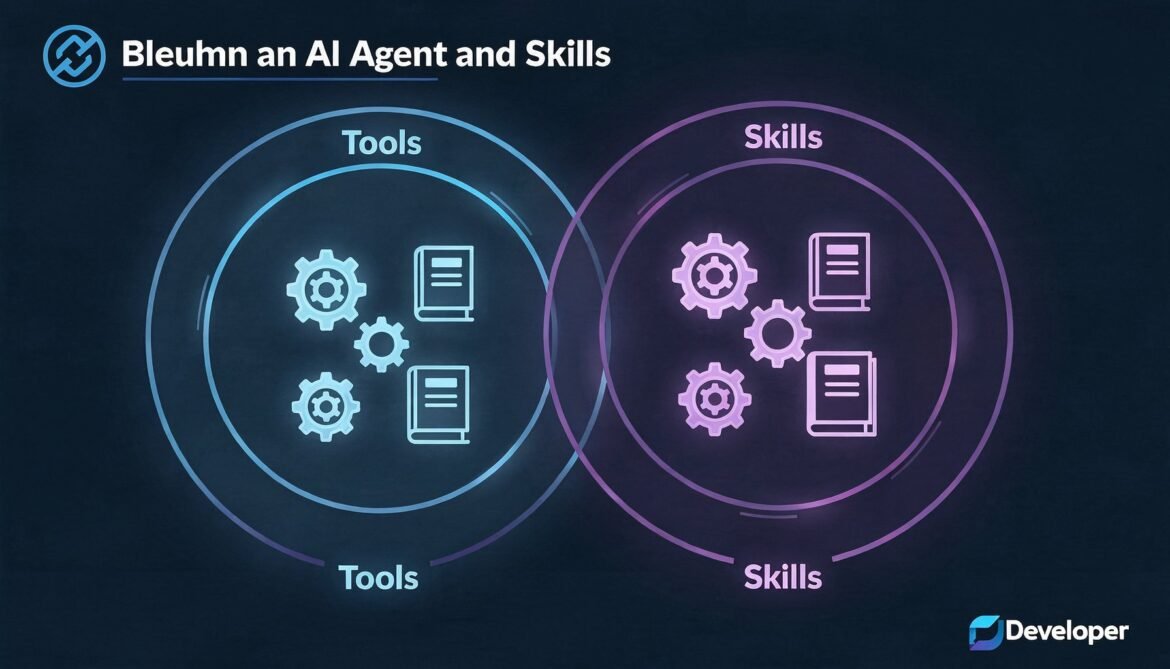
- Tools are organs. They determine what your agent physically can do. Without the right tool enabled, the agent cannot perform an action regardless of how smart the underlying LLM is.
- Skills are textbooks. They teach the agent how to combine its tools to accomplish specific tasks. A skill for GitHub teaches the agent the right commands and workflows to interact with repositories. But if the shell execution tool is not enabled, reading the textbook changes nothing.
For a concrete example: if you install the Google Workspace skill (gog), your agent now knows how to read Gmail and write calendar events. But for it to actually work, three conditions must all be met: the shell execution tool must be enabled, the Google Workspace CLI bridge must be installed on your machine, and you must have authorized the agent with your Google account. The skill is just the manual. The real switches are in Tools.
flowchart TD
    Task["User Task: Read my Gmail"]
    Skill["Skill: gog (Google Workspace)\nKnows HOW to read Gmail"]
    Tool1["Tool: exec (Shell Execution)\nCan RUN commands"]
    Tool2["Tool: write (File Write)\nCan SAVE results"]
    Auth["Authorization\nGoogle OAuth granted"]
    Bridge["gog bridge tool\nInstalled on machine"]

    Task --> Skill
    Skill -->|"Needs"| Tool1
    Skill -->|"Needs"| Tool2
    Skill -->|"Needs"| Auth
    Skill -->|"Needs"| Bridge

    Tool1 & Tool2 & Auth & Bridge -->|"All required"| Result["Task executes successfully"]
The Three Layers of OpenClaw Capability
Think of OpenClaw’s capability system as three concentric circles, each building on the previous one.
flowchart LR
    subgraph L1["Layer 1: Core Tools (8 tools)"]
        T1["file-read"]
        T2["file-write"]
        T3["exec (shell)"]
        T4["web-fetch"]
        T5["web-search"]
        T6["cron"]
        T7["webhooks"]
        T8["notifications"]
    end

    subgraph L2["Layer 2: Advanced Tools (17 tools)"]
        T9["browser (Playwright)"]
        T10["memory"]
        T11["sessions (multi-agent)"]
        T12["camera / screen"]
        T13["audio (speech)"]
    end

    subgraph L3["Layer 3: Skills (53 bundled + 13000+ ClawHub)"]
        S1["github"]
        S2["gog (Google Workspace)"]
        S3["obsidian"]
        S4["slack"]
        S5["homeassistant"]
        S6["...and thousands more"]
    end

    L1 --> L2 --> L3
Layer 1 (Core Tools) should be enabled by almost everyone. They give the agent basic file access, shell execution, and web capabilities. Layer 2 (Advanced Tools) should be enabled selectively based on what you need. Layer 3 (Skills) is where you install only what you actively use, because each installed skill expands the agent’s instruction context and its attack surface.
Core Tools: What Each One Does
Here is a breakdown of the eight core tools and when to enable them.
mindmap
  root((Core Tools))
    file-read
      Read files from disk
      Required for most skills
      Enable for everyone
    file-write
      Write and create files
      Required for file-based workflows
      Enable with caution
    exec
      Run shell commands
      Most powerful tool
      Required for most integrations
      Review carefully before enabling
    web-fetch
      Fetch URLs and web content
      Required for research skills
      Enable for everyone
    web-search
      Search the web
      Required for research tasks
      Enable for everyone
    cron
      Schedule recurring tasks
      Required for automation
      Enable if you want proactive agent
    webhooks
      Receive inbound HTTP events
      Required for CI/CD integration
      Enable for developer workflows
    notifications
      Send system notifications
      macOS/Linux desktop alerts
      Enable if you want desktop alerts
Enabling Tools in openclaw.json
Tools are configured in your openclaw.json file. Here is a recommended starting configuration for a developer:
{
  "tools": {
    "file-read": { "enabled": true },
    "file-write": { "enabled": true },
    "exec": {
      "enabled": true,
      "allowedCommands": ["git", "npm", "node", "python", "ls", "cat", "grep"]
    },
    "web-fetch": { "enabled": true },
    "web-search": { "enabled": true },
    "cron": { "enabled": true },
    "webhooks": {
      "enabled": true,
      "port": 18790
    },
    "notifications": { "enabled": true },
    "browser": { "enabled": false },
    "memory": { "enabled": true },
    "sessions": { "enabled": false }
  }
}
Notice the allowedCommands list on the exec tool. This is a critical security measure. Rather than giving the agent unrestricted shell access, you explicitly list which commands it is allowed to run. If your workflow does not need a command, do not include it.
Advanced Tools: Use Selectively
The advanced tools unlock significantly more capability but come with more risk. Enable them only when you have a specific need.
- browser (Playwright): gives the agent full browser automation including clicking, form filling, and screenshot capture. Powerful for web scraping and automation. Requires Playwright installed (
npx playwright install). - memory: enables the structured memory system (MEMORY.md and daily logs). Strongly recommended. Without it your agent has no persistence between sessions.
- sessions: enables multiple simultaneous agent sessions and agent-to-agent communication. Needed for multi-agent workflows covered in Part 7. Do not enable until you need it.
- camera / screen: lets the agent capture screenshots or use the camera. Useful for monitoring setups. A significant privacy consideration on shared machines.
- audio: enables voice transcription (via Groq or Whisper) and text-to-speech. Useful for voice notes via Telegram.
Bundled Skills: What Comes Out of the Box
OpenClaw ships with 53 bundled skills across several categories. These are vetted by the core team and load automatically based on what tools and dependencies are available. Here are the most relevant ones for developers:
mindmap
  root((Bundled Skills))
    Development
      github
      security-check
      cron-backup
      file-organizer
    Communication
      slack
      discord
      email
    Productivity
      gog (Google Workspace)
      obsidian
      calendar
    Infrastructure
      homeassistant
      docker
      ssh-remote
    Research
      web-researcher
      arxiv-digest
      news-monitor
To see all skills currently installed and eligible to run:
# List all skills (installed, bundled, and managed)
openclaw skills list

# List only eligible skills (where all tool requirements are met)
openclaw skills list --eligible

# Get details on a specific skill
openclaw skills info github

# Show skills that cannot run and why
openclaw skills list --ineligible
How Skills Are Structured Internally
Every skill is a directory containing at minimum a SKILL.md file with YAML frontmatter and natural language instructions. Understanding this structure is essential before you write your own in Part 4.
---
name: github
description: Interact with GitHub repositories, issues, PRs, and workflows
version: 1.2.0
author: openclaw-team
requires:
  tools:
    - exec
    - web-fetch
  binaries:
    - gh
  config:
    - GITHUB_TOKEN
tags:
  - development
  - version-control
---

# GitHub Skill

This skill teaches the agent how to interact with GitHub using the official GitHub CLI (gh).

## Common Tasks

### Clone a repository
Use `gh repo clone /` to clone a repository to the local machine.

### Create a pull request
Use `gh pr create --title "
The YAML frontmatter defines the skill’s metadata and requirements. The requires block tells OpenClaw what tools, system binaries, and config values must be present for the skill to be eligible. If any requirement is missing, the skill will appear in openclaw skills list --ineligible with the reason.
The body of the file is plain English instructions that get injected into the LLM’s context when relevant. OpenClaw uses the skill description and tags to decide which skills to load for a given conversation, keeping the context lean by only loading what is relevant.
Skill Precedence: Which Version Wins
When the same skill name exists in multiple places, OpenClaw uses a clear precedence order:
flowchart TD
    A["Skill name conflict detected"]
    A --> B["Workspace skills\n~/openclaw/skills/\nHIGHEST priority"]
    B --> C["Managed / local skills\n~/.openclaw/skills/\nSecond priority"]
    C --> D["Bundled skills\nshipped with OpenClaw\nLOWEST priority"]

    B -->|"Wins"| Result["This version loads"]
    C -->|"Only if no workspace skill"| Result
    D -->|"Only if no managed skill"| Result
This means you can override any bundled skill by creating a skill with the same name in your workspace skills/ directory. This is useful when you want to customize behavior without touching the global skill files.
ClawHub: Browsing the Community Registry
ClawHub (clawhub.com) is the public community skills registry. As of late February 2026 it hosts over 13,700 skills. That number is growing fast and the quality varies significantly. Here is how to browse and install skills safely.
# Browse available skills from the terminal
clawhub list

# Search for skills by keyword
clawhub search "github"
clawhub search "backup"
clawhub search "azure"

# View details of a skill before installing
clawhub info agent-deep-research

# Install a skill
clawhub install agent-brain

# Check installed skills
clawhub list --installed

# Update all managed skills
clawhub update --all

# Uninstall a skill
clawhub uninstall agent-brain
Evaluating a ClawHub Skill Before Installing
Do not install a skill just because it sounds useful. Run through this checklist first:
- Check the VirusTotal report. Every skill’s ClawHub page links to a VirusTotal scan. If it is flagged, skip it regardless of how many stars it has.
- Read the source on GitHub. The SKILL.md file should be plain text instructions. If you see base64 encoded content, obfuscated commands, or instructions to fetch external URLs and execute them, do not install it.
- Check the
requiresblock. A skill that requests more permissions than its described purpose needs is a red flag. A note-taking skill that requires camera access makes no sense. - Check the author and stars. Skills from the official openclaw organization or from well-known maintainers with active GitHub history are safer than anonymous one-off submissions.
- Run the security-check skill first. If you have it installed, ask your agent to audit the skill file before you install it: “Review this SKILL.md for security concerns” and paste the content.
Recommended Skills for a Developer Setup
Here is a practical starter set of skills for a software developer, all from the official skills repository or well-reviewed community sources:
# Security and auditing (install this first)
clawhub install security-check

# GitHub integration (requires: gh CLI installed, GITHUB_TOKEN set)
clawhub install github

# Automated backups with version tracking
clawhub install cron-backup

# Deep research via web search
clawhub install agent-deep-research

# Persistent memory with SQLite (more structured than MEMORY.md)
clawhub install agent-brain

# Morning briefing (weather, news, calendar summary)
clawhub install morning-briefing
Install them one at a time and test each one before adding the next. This makes it easier to diagnose issues and understand what each skill adds to your agent’s behavior.
How OpenClaw Decides Which Skills to Load
A common question is whether all installed skills are injected into the LLM context for every message. The answer is no. OpenClaw filters skills at load time based on three factors:
- Eligibility: only skills whose tool and binary requirements are currently met are loaded
- Relevance: OpenClaw uses the skill’s name, description, and tags to decide if it is relevant to the current conversation or task
- Configuration: skills can be conditionally enabled or disabled in
openclaw.jsonper agent
This keeps the context window manageable even when you have dozens of skills installed. You can also explicitly enable or disable individual skills in your config:
{
  "skills": {
    "entries": {
      "github": {
        "enabled": true,
        "env": {
          "GITHUB_TOKEN": "ghp_your_token_here"
        }
      },
      "homeassistant": {
        "enabled": false
      },
      "cron-backup": {
        "enabled": true
      }
    }
  }
}
Skills in Multi-Agent Setups
When you have multiple agents running (covered in Part 7), skills can be scoped per agent. Workspace skills in <workspace>/skills/ are private to that agent. Managed skills in ~/.openclaw/skills/ are shared across all agents on the same machine. This lets you have a code-focused agent with only development skills and a communication agent with email and calendar skills, keeping each one lean and focused.
flowchart TD
    Global["~/.openclaw/skills/\n(shared across all agents)"]

    subgraph Agent1["Code Agent Workspace"]
        WS1["skills/github\nskills/cron-backup\nskills/security-check"]
    end

    subgraph Agent2["Comms Agent Workspace"]
        WS2["skills/gog\nskills/slack\nskills/morning-briefing"]
    end

    Global --> Agent1
    Global --> Agent2
    WS1 -->|"Private to Code Agent"| A1["Code Agent"]
    WS2 -->|"Private to Comms Agent"| A2["Comms Agent"]
What Is Next
You now understand how Tools and Skills work, the three-layer capability model, how ClawHub works, and how to evaluate community skills safely. In Part 4 we put this knowledge to work by building a custom skill from scratch. We will write a complete SKILL.md, configure SOUL.md and USER.md for a real developer workflow, and test it end to end with working examples in Node.js and Python.
References
- OpenClaw Skills Documentation – docs.openclaw.ai
- VoltAgent – Awesome OpenClaw Skills Registry (5,400+ curated skills)
- DigitalOcean – What Are OpenClaw Skills
- Yu Wenhao – OpenClaw 25 Tools and 53 Skills Explained
- OpenClaw GitHub Repository – github.com/openclaw/openclaw
- Valletta Software – OpenClaw Architecture and Security Guide 2026
- Medium – Setting Up Skills in OpenClaw (Nwosu Rosemary)