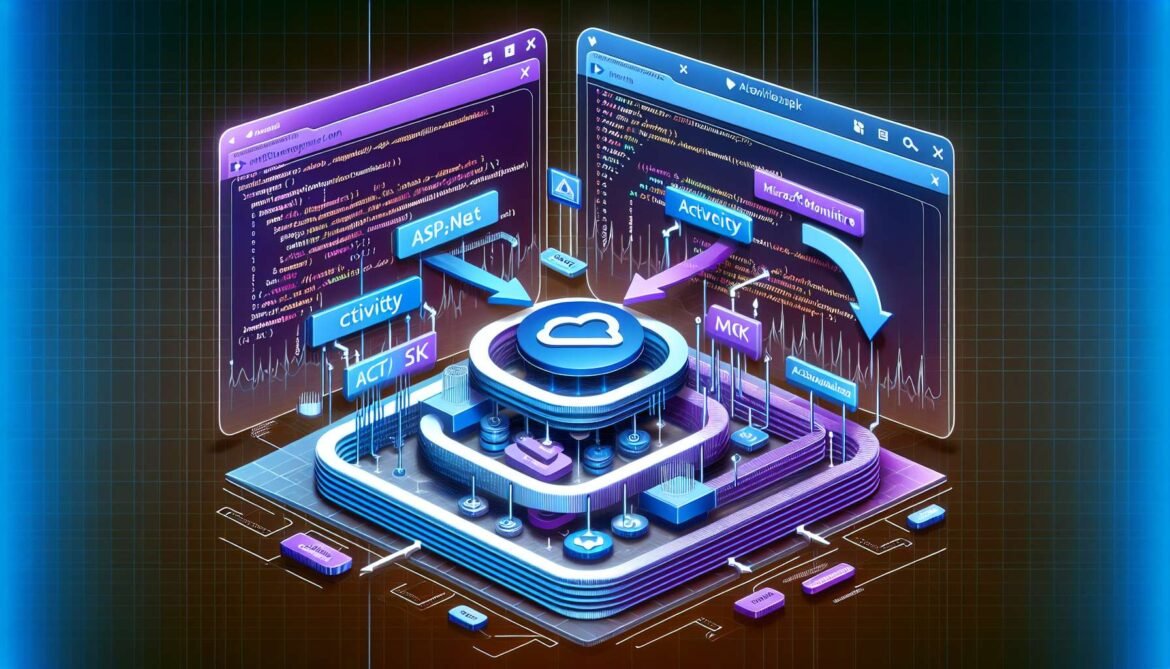
The .NET ecosystem provides first-class support for OpenTelemetry through the Azure Monitor OpenTelemetry Distro. Unlike other languages where OpenTelemetry is a separate framework, .NET integrates observability concepts directly into the runtime through the System.Diagnostics namespace. This deep integration means .NET developers can create production-grade instrumentation with minimal external dependencies while maintaining compatibility with the OpenTelemetry specification.
This guide demonstrates how to instrument .NET applications using the Azure Monitor OpenTelemetry Distro, implement custom spans using Activity and ActivitySource, create custom metrics, and configure production-ready observability. We cover both ASP.NET Core web applications and console applications, showing how to leverage .NET’s native telemetry capabilities while exporting to Azure Monitor.
Understanding .NET’s Approach to OpenTelemetry
.NET takes a unique approach to OpenTelemetry compared to other platforms. Rather than implementing the OpenTelemetry API as a completely separate library, .NET incorporates tracing concepts directly into the runtime through classes like Activity and ActivitySource. This design decision came from .NET having distributed tracing capabilities years before OpenTelemetry existed.
The Activity Model
In OpenTelemetry terminology, a “Span” represents a unit of work. In .NET, this concept is implemented through the Activity class from System.Diagnostics. Similarly, what OpenTelemetry calls a “Tracer” is implemented as ActivitySource in .NET. This mapping allows .NET applications to use familiar runtime classes while remaining fully compatible with OpenTelemetry standards.
graph LR
    subgraph OpenTelemetry Concepts
        OT1[Tracer]
        OT2[Span]
        OT3[Span Attributes]
        OT4[Span Events]
    end

    subgraph .NET Implementation
        NET1[ActivitySource]
        NET2[Activity]
        NET3[Activity Tags]
        NET4[Activity Events]
    end

    OT1 -.Maps to.-> NET1
    OT2 -.Maps to.-> NET2
    OT3 -.Maps to.-> NET3
    OT4 -.Maps to.-> NET4

    style OT1 fill:#f2711c
    style OT2 fill:#f2711c
    style NET1 fill:#68217a
    style NET2 fill:#68217a
This architecture provides significant advantages. Your instrumentation code uses .NET runtime types without external dependencies, ensuring compatibility across .NET versions. The OpenTelemetry SDK layers on top of these native types, handling export to Azure Monitor or other backends without affecting your core instrumentation logic.
Prerequisites and Project Setup
Before implementing OpenTelemetry instrumentation, ensure you have the required tools and resources configured.
- .NET 6.0 SDK or later (.NET 8.0 recommended for latest features)
- An Azure subscription with Application Insights resource
- Application Insights connection string
- Visual Studio 2022, VS Code, or Rider IDE
Creating Application Insights Resource
Create an Application Insights resource through Azure CLI:
az monitor app-insights component create \
  --app my-dotnet-app \
  --location eastus \
  --resource-group my-resource-group \
  --application-type web

az monitor app-insights component show \
  --app my-dotnet-app \
  --resource-group my-resource-group \
  --query connectionString \
  --output tsv
Store the connection string securely using .NET User Secrets for local development:
dotnet user-secrets init
dotnet user-secrets set "APPLICATIONINSIGHTS_CONNECTION_STRING" "InstrumentationKey=..."
ASP.NET Core Implementation
ASP.NET Core applications benefit from the Azure Monitor OpenTelemetry Distro, which provides automatic instrumentation with minimal configuration. This section demonstrates implementation from initial setup through production deployment.
Installing the Distro Package
Install the Azure Monitor OpenTelemetry Distro for ASP.NET Core:
dotnet add package Azure.Monitor.OpenTelemetry.AspNetCoreThis single package includes everything needed for comprehensive observability including OpenTelemetry SDK, Azure Monitor exporters, and automatic instrumentation for ASP.NET Core, HttpClient, and SQL Client.
Basic Configuration
Configure OpenTelemetry in Program.cs with a single method call:
using Azure.Monitor.OpenTelemetry.AspNetCore;

var builder = WebApplication.CreateBuilder(args);

// Add OpenTelemetry with Azure Monitor
builder.Services.AddOpenTelemetry().UseAzureMonitor();

// Add your services
builder.Services.AddControllers();

var app = builder.Build();

app.MapControllers();
app.Run();
The UseAzureMonitor() method configures trace providers, meter providers, and log providers automatically. It also registers Azure Monitor exporters and enables automatic instrumentation for common scenarios.
What Gets Instrumented Automatically
The Distro automatically captures telemetry for:
- HTTP requests to ASP.NET Core endpoints (Request telemetry)
- Outgoing HTTP calls via HttpClient (Dependency telemetry)
- SQL database queries using SqlClient (Dependency telemetry)
- Exceptions thrown during request processing
- Standard performance metrics (CPU, memory, request rates)
This automatic instrumentation means basic observability works immediately. Run your application and telemetry starts flowing to Application Insights without additional code.
Custom Spans with Activity and ActivitySource
While automatic instrumentation covers common scenarios, custom spans track business logic, algorithms, or operations not automatically captured. .NET uses Activity and ActivitySource to create custom spans.
Creating an ActivitySource
Define an ActivitySource as a static field in your class or create a dedicated instrumentation class:
using System.Diagnostics;

namespace MyApp.Services;

public static class Telemetry
{
    // Define ActivitySource with unique name and version
    public static readonly ActivitySource ActivitySource = new(
        "MyApp.Services",
        "1.0.0"
    );
}
The name should be unique and typically follows your namespace structure. The version is optional but recommended for tracking instrumentation changes across releases.
Registering the ActivitySource
Configure OpenTelemetry to listen to your ActivitySource in Program.cs:
using Azure.Monitor.OpenTelemetry.AspNetCore;

var builder = WebApplication.CreateBuilder(args);

builder.Services.AddOpenTelemetry().UseAzureMonitor();

// Register custom ActivitySource
builder.Services.ConfigureOpenTelemetryTracerProvider((sp, builder) =>
{
    builder.AddSource("MyApp.Services");
});

var app = builder.Build();
app.Run();
Without this registration, your ActivitySource won’t emit telemetry. This design allows selective instrumentation where you control which sources are active.
Creating Activities
Create activities using StartActivity within a using statement to ensure proper disposal:
using System.Diagnostics;
using MyApp.Services;

public class OrderService
{
    public async Task ProcessOrderAsync(int orderId)
    {
        // Create activity for the entire operation
        using var activity = Telemetry.ActivitySource.StartActivity("ProcessOrder");

        if (activity != null)
        {
            // Add context to the span
            activity.SetTag("order.id", orderId);
            activity.SetTag("order.source", "web");
        }

        // Your business logic here
        var order = await RetrieveOrderAsync(orderId);
        await ValidateOrderAsync(order);
        await CalculateTotalsAsync(order);

        return order;
    }

    private async Task RetrieveOrderAsync(int orderId)
    {
        // Create nested activity
        using var activity = Telemetry.ActivitySource.StartActivity("RetrieveOrder");

        activity?.SetTag("database.table", "Orders");

        // Database call
        await Task.Delay(100); // Simulated DB call

        return new Order { Id = orderId };
    }
}
Activities automatically nest when created within the context of a parent activity. The Azure Monitor exporter maps these relationships correctly in Application Insights.
Activity Kinds and Mapping
Activities can have different kinds that affect how they appear in Application Insights:
// Server: Incoming request (maps to Request in App Insights)
using var serverActivity = Telemetry.ActivitySource.StartActivity(
    "HandleRequest",
    ActivityKind.Server
);

// Client: Outgoing request (maps to Dependency in App Insights)
using var clientActivity = Telemetry.ActivitySource.StartActivity(
    "CallExternalAPI",
    ActivityKind.Client
);

// Internal: Internal operation (maps to Dependency in App Insights)
using var internalActivity = Telemetry.ActivitySource.StartActivity(
    "CalculateTotal",
    ActivityKind.Internal
);

// Producer: Async message send (maps to Dependency in App Insights)
using var producerActivity = Telemetry.ActivitySource.StartActivity(
    "PublishEvent",
    ActivityKind.Producer
);

// Consumer: Async message receive (maps to Request in App Insights)
using var consumerActivity = Telemetry.ActivitySource.StartActivity(
    "ProcessMessage",
    ActivityKind.Consumer
);
Adding Events and Status
Activities support timestamped events and status codes for error tracking:
using System.Diagnostics;

public async Task ProcessPaymentAsync(Payment payment)
{
    using var activity = Telemetry.ActivitySource.StartActivity("ProcessPayment");

    try
    {
        activity?.SetTag("payment.amount", payment.Amount);
        activity?.SetTag("payment.method", payment.Method);

        // Add event for significant occurrence
        activity?.AddEvent(new ActivityEvent("PaymentValidationStarted"));

        await ValidatePaymentAsync(payment);

        activity?.AddEvent(new ActivityEvent("PaymentProcessingStarted"));

        await ChargePaymentAsync(payment);

        // Success status
        activity?.SetStatus(ActivityStatusCode.Ok);
    }
    catch (PaymentException ex)
    {
        // Record exception
        activity?.SetStatus(ActivityStatusCode.Error, ex.Message);
        activity?.AddEvent(new ActivityEvent("PaymentFailed",
            tags: new ActivityTagsCollection
            {
                { "error.type", ex.GetType().Name },
                { "error.message", ex.Message }
            }
        ));

        throw;
    }
}
Custom Metrics Implementation
.NET implements OpenTelemetry metrics through the System.Diagnostics.Metrics namespace. The Meter class provides instruments for recording measurements.
Creating a Meter
using System.Diagnostics.Metrics;

public static class AppMetrics
{
    private static readonly Meter Meter = new("MyApp.Metrics", "1.0.0");

    // Counter: Monotonically increasing value
    public static readonly Counter OrdersProcessed = Meter.CreateCounter(
        "orders.processed",
        unit: "orders",
        description: "Total number of orders processed"
    );

    // Histogram: Value distribution
    public static readonly Histogram OrderValue = Meter.CreateHistogram(
        "order.value",
        unit: "USD",
        description: "Distribution of order values"
    );

    // ObservableGauge: Current value snapshot
    public static readonly ObservableGauge ActiveConnections =
        Meter.CreateObservableGauge(
            "connections.active",
            () => GetActiveConnectionCount(),
            unit: "connections",
            description: "Current number of active connections"
        );

    private static int GetActiveConnectionCount()
    {
        // Return actual count from your connection pool
        return 42;
    }
}
Registering Meters
Register your Meter in Program.cs:
builder.Services.AddOpenTelemetry().UseAzureMonitor();

builder.Services.ConfigureOpenTelemetryMeterProvider((sp, builder) =>
{
    builder.AddMeter("MyApp.Metrics");
});
Recording Metrics
public class OrderService
{
    public async Task ProcessOrderAsync(OrderRequest request)
    {
        // Record counter increment
        AppMetrics.OrdersProcessed.Add(1, new KeyValuePair("order.type", request.Type));

        // Record histogram value
        AppMetrics.OrderValue.Record(request.TotalAmount, new KeyValuePair("currency", "USD"));

        // Your processing logic
        var order = await CreateOrderAsync(request);

        return order;
    }
}
Production Configuration
Production deployments require additional configuration for sampling, resource attributes, and offline storage.
Resource Attributes and Cloud Role
using Azure.Monitor.OpenTelemetry.AspNetCore;

var builder = WebApplication.CreateBuilder(args);

var resourceAttributes = new Dictionary
{
    { "service.name", "order-service" },
    { "service.namespace", "ecommerce" },
    { "service.instance.id", Environment.MachineName },
    { "service.version", "1.2.0" },
    { "deployment.environment", builder.Environment.EnvironmentName }
};

builder.Services.AddOpenTelemetry()
    .UseAzureMonitor(options =>
    {
        options.ConnectionString = builder.Configuration["APPLICATIONINSIGHTS_CONNECTION_STRING"];
    })
    .ConfigureResource(resource => resource.AddAttributes(resourceAttributes));
These attributes populate Cloud Role Name and Cloud Role Instance in Application Insights, enabling proper service identification in Application Map.
Sampling Configuration
using OpenTelemetry.Trace;

builder.Services.ConfigureOpenTelemetryTracerProvider((sp, tracerBuilder) =>
{
    // Sample 20% of traces in production
    if (builder.Environment.IsProduction())
    {
        tracerBuilder.SetSampler(new ParentBasedSampler(
            new TraceIdRatioBasedSampler(0.2)
        ));
    }
});
Filtering Health Checks
using Microsoft.AspNetCore.Http;
using OpenTelemetry.Instrumentation.AspNetCore;

builder.Services.Configure(options =>
{
    options.Filter = httpContext =>
    {
        // Exclude health check endpoints
        return !httpContext.Request.Path.StartsWithSegments("/health");
    };
});
Console Application Implementation
Console applications use the Azure Monitor OpenTelemetry Exporter directly rather than the Distro:
using Azure.Monitor.OpenTelemetry.Exporter;
using OpenTelemetry;
using OpenTelemetry.Resources;
using OpenTelemetry.Trace;
using System.Diagnostics;

var resourceBuilder = ResourceBuilder.CreateDefault()
    .AddService("my-console-app", serviceVersion: "1.0.0");

using var tracerProvider = Sdk.CreateTracerProviderBuilder()
    .SetResourceBuilder(resourceBuilder)
    .AddSource("MyApp.Console")
    .AddAzureMonitorTraceExporter(options =>
    {
        options.ConnectionString = Environment.GetEnvironmentVariable("APPLICATIONINSIGHTS_CONNECTION_STRING");
    })
    .Build();

var activitySource = new ActivitySource("MyApp.Console");

using var activity = activitySource.StartActivity("MainOperation");
activity?.SetTag("operation.type", "batch");

// Your console application logic
Console.WriteLine("Processing batch job...");
await Task.Delay(1000);

activity?.SetStatus(ActivityStatusCode.Ok);
Viewing Telemetry in Azure Portal
After instrumenting your application, telemetry appears in Application Insights within minutes. Key views include Application Map for service dependencies, Performance for operation duration analysis, Failures for exception tracking, and Live Metrics for real-time monitoring.
Custom metrics appear in the Metrics blade under the “Log-based metrics” namespace. Query custom spans using Application Insights Analytics with Kusto queries against the requests and dependencies tables.
Next in the Series
This guide covered .NET-specific OpenTelemetry implementation with Azure Monitor. The next article in this series explores Node.js instrumentation with Express and Fastify frameworks, demonstrating how JavaScript applications achieve similar observability goals with different implementation patterns.
References
- Microsoft Learn – Enable OpenTelemetry in Application Insights
- NuGet – Azure.Monitor.OpenTelemetry.AspNetCore
- Microsoft Learn – Add and Modify OpenTelemetry
- Microsoft Docs – Add Distributed Tracing Instrumentation
- OpenTelemetry – .NET Instrumentation
- Microsoft Learn – Configure OpenTelemetry
- GitHub – OpenTelemetry .NET
- Microsoft Learn – Migrate .NET to OpenTelemetry