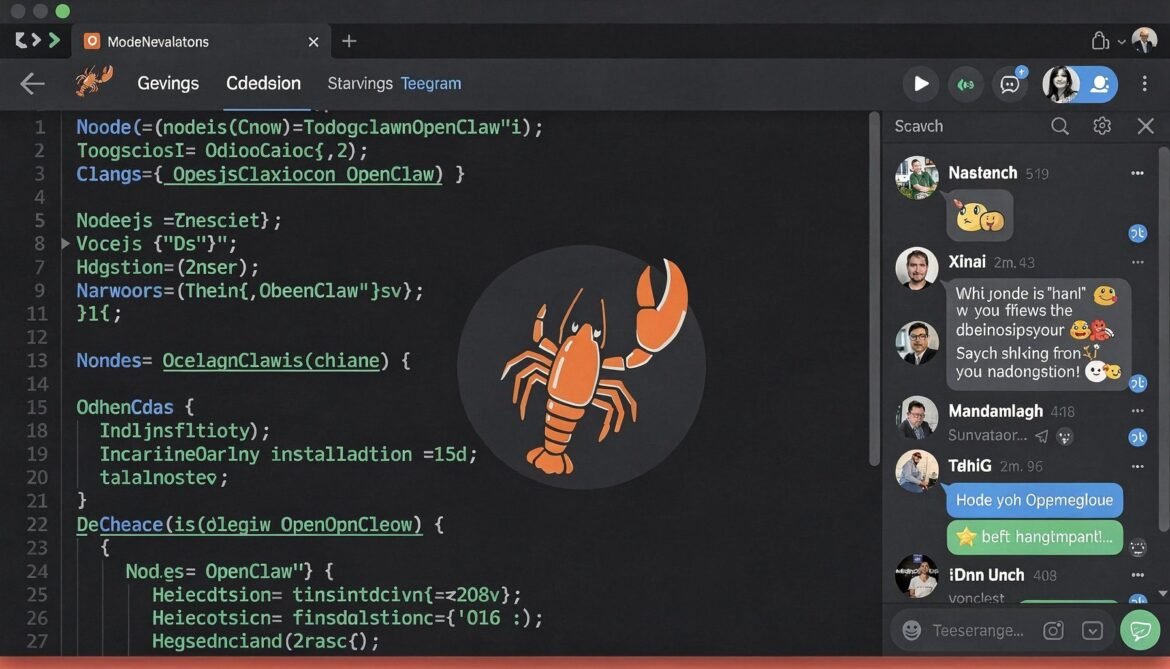
In Part 1 we covered what OpenClaw is, how its architecture works, and why developers should pay attention to it. Now we get hands-on. By the end of this post, you will have OpenClaw installed, your gateway running as a background daemon, and your first channel connected so you can message your agent from your phone.
This guide covers macOS and Linux. Windows users can follow along using WSL2 (Windows Subsystem for Linux) with Ubuntu.
Prerequisites
Before you start, make sure you have the following ready:
- Node.js 22 or later (check with
node --version) - npm 10 or later (bundled with Node.js 22)
- An API key from at least one LLM provider: Anthropic, OpenAI, or DeepSeek
- A Telegram account and access to @BotFather to create a bot token
- Basic comfort with a terminal
If you do not have Node.js 22, install it via nvm (recommended):
# Install nvm
curl -o- https://raw.githubusercontent.com/nvm-sh/nvm/v0.39.7/install.sh | bash

# Reload shell
source ~/.bashrc   # or ~/.zshrc on macOS

# Install and use Node.js 22
nvm install 22
nvm use 22
nvm alias default 22

# Verify
node --version   # should output v22.x.x
npm --version    # should output 10.x.x
The Setup Flow
Here is the overall flow we will follow in this post before diving into each step.
flowchart TD
    A["Install OpenClaw globally via npm"] --> B["Run openclaw onboard wizard"]
    B --> C["Configure LLM provider and API key"]
    C --> D["Create Telegram bot via BotFather"]
    D --> E["Connect Telegram channel to gateway"]
    E --> F["Start gateway daemon"]
    F --> G["Send first message to your agent"]
    G --> H["Verify response and check logs"]
Step 1: Install OpenClaw
Install OpenClaw globally from the official npm package. Do not use any other source. Fake installer repositories have been found on GitHub and indexed by search engines, so always install from npm directly.
npm install -g openclaw@latest
After installation, verify it worked:
openclaw --version
You should see the current version number. If the command is not found, your npm global bin directory may not be in your PATH. Fix it like this:
# Find your npm global bin path
npm config get prefix

# Add it to your PATH in ~/.bashrc or ~/.zshrc
export PATH="$(npm config get prefix)/bin:$PATH"

source ~/.bashrc   # or source ~/.zshrc
Step 2: Run the Onboard Wizard
OpenClaw ships with an interactive onboard wizard that walks you through the entire initial configuration. Run it with the --install-daemon flag so it also sets up the gateway as a background service that starts automatically on login or reboot.
openclaw onboard --install-daemon
The wizard will prompt you through the following stages. You can complete them one at a time or skip stages and return later with openclaw onboard again.
- Workspace setup: chooses where your agent files, memory, and skills are stored (defaults to
~/openclaw) - LLM provider configuration: select your provider and enter your API key
- Channel pairing: connect at least one messaging channel (Telegram is the easiest to start with)
- Daemon installation: registers the gateway as a launchd service (macOS) or systemd user service (Linux)
Configuring Your LLM Provider
During the wizard, you will be asked to choose a provider. Here are the most common options and what to expect from each:
flowchart LR
    OC["OpenClaw Gateway"]
    AN["Anthropic\n(Claude Sonnet / Opus)"]
    OAI["OpenAI\n(GPT-4o / o3)"]
    DS["DeepSeek\n(V3 / R1)"]
    LOCAL["Local Model\n(Ollama / LM Studio)"]

    OC -->|"ANTHROPIC_API_KEY"| AN
    OC -->|"OPENAI_API_KEY"| OAI
    OC -->|"DEEPSEEK_API_KEY"| DS
    OC -->|"localhost:11434"| LOCAL
For most developers starting out, Claude Sonnet or GPT-4o gives a good balance of speed and capability. DeepSeek is a cost-effective option. Local models via Ollama work well for privacy-sensitive setups but require more RAM and a capable GPU for reasonable response times.
You can also configure multiple providers and route different agents to different models, which we cover in Part 7.
Step 3: Create a Telegram Bot
Telegram is the recommended channel for first-time setup because the bot creation process is straightforward and the latency is low. Here is how to get your bot token:
- Open Telegram and search for @BotFather
- Send the command
/newbot - Follow the prompts to give your bot a name (e.g., “My OpenClaw Agent”) and a username (must end in
bot, e.g.,myclawagent_bot) - BotFather will respond with your bot token in the format
123456789:ABCDefGhIJKlmNoPQRsTUVwxyZ - Copy this token and keep it secure. Anyone with this token can control your bot.
When the onboard wizard asks for your Telegram bot token, paste it in. The wizard will complete the pairing automatically.
Step 4: Start the Gateway
If the wizard installed the daemon, the gateway should already be running. Check its status:
openclaw gateway status
If it is not running, start it manually:
openclaw gateway start
You can also open the web dashboard to see active sessions, connected channels, and installed skills:
openclaw dashboard
# Opens http://127.0.0.1:18789 in your browser
Gateway Management Commands
openclaw gateway start      # Start the gateway
openclaw gateway stop       # Stop the gateway
openclaw gateway restart    # Restart (needed after config changes)
openclaw gateway status     # Check if running
openclaw logs --follow      # Stream live logs
openclaw doctor             # Run diagnostics
openclaw doctor --repair    # Attempt to auto-fix common issues
Step 5: Send Your First Message
Open Telegram, find the bot you created (search by its username), and send it a message. Something simple like “Hello, what can you do?” works fine.
Your agent should respond within a few seconds. If it does not, check the gateway logs:
openclaw logs --follow
Common reasons for no response at this stage:
- The gateway is not running (
openclaw gateway start) - The Telegram bot token was entered incorrectly during onboarding
- The LLM API key is invalid or has no credits
- A firewall is blocking outbound connections to the Telegram API or your LLM provider
Understanding Your Workspace
After setup, your workspace directory (default ~/openclaw) contains several important files you should know about.
flowchart TD
    WS["~/openclaw (workspace)"]
    WS --> CFG["openclaw.json\n(main config file)"]
    WS --> SOUL["SOUL.md\n(agent personality and behavior)"]
    WS --> MEM["MEMORY.md\n(long-term persistent memory)"]
    WS --> USER["USER.md\n(information about you)"]
    WS --> HB["HEARTBEAT.md\n(scheduled check-in config)"]
    WS --> SKILLS["skills/\n(workspace-level custom skills)"]
    WS --> MEMLOG["memory/\n(daily conversation logs)"]
    WS --> CRON["cron/\n(scheduled job definitions)"]
openclaw.json
This is the main configuration file. It controls which LLM provider is used, which skills are enabled, gateway settings, and channel configuration. Here is a minimal example of what it looks like after onboarding:
{
  "llm": {
    "provider": "anthropic",
    "model": "claude-sonnet-4-20250514",
    "apiKey": "your-anthropic-api-key"
  },
  "gateway": {
    "port": 18789,
    "bind": "loopback"
  },
  "channels": {
    "telegram": {
      "enabled": true,
      "token": "your-telegram-bot-token"
    }
  },
  "skills": {
    "entries": {}
  }
}
Note the "bind": "loopback" setting. This is critical for security. It ensures the gateway only listens on localhost and is not exposed to the public internet. We cover this in depth in Part 6, but set it now.
SOUL.md
This file defines your agent’s personality, tone, and behavioral guidelines. The default is a helpful and professional assistant. You can edit it to match your preferences. For example:
# Agent Personality

You are a personal assistant for a software developer.
You prefer concise, technical responses.
When asked about code, always include examples in Node.js or Python unless specified otherwise.
You use a professional but friendly tone.
You never take irreversible actions (deleting files, sending emails) without explicit confirmation.
USER.md
This file is about you. Fill it in so the agent can personalize its responses from day one without needing to learn everything from scratch through conversations.
# About Me

- Name: Chandan
- Role: Software Engineer and Technical Content Creator
- Primary languages: Node.js, Python, C#
- Cloud platform: Azure
- Blog: chandanbhagat.com.np
- Preferred response style: concise, technical, with working code examples
- Timezone: Asia/Kathmandu (UTC+5:45)
Installing Your First Skills
With the gateway running, you can extend your agent’s capabilities by installing skills from ClawHub. Here are a few safe, well-reviewed skills to try first:
# List all currently installed and eligible skills
openclaw skills list
openclaw skills list --eligible

# Browse ClawHub from the terminal
clawhub list

# Install a specific skill (example: GitHub integration)
clawhub install github

# Install the security-check skill (useful before installing others)
clawhub install security-check

# Update all installed skills
clawhub update --all
Before installing any community skill, check its VirusTotal report on ClawHub and review its source code on GitHub. We will cover skill security in detail in Part 6.
Useful Commands Reference
Here is a quick reference of commands you will use regularly:
# Send a message to your agent from the terminal (without Telegram)
openclaw agent --message "What is today's date?"

# Send with high-thinking mode for complex tasks
openclaw agent --message "Plan my week" --thinking high

# Check overall system health
openclaw doctor

# View skill details
openclaw skills info github

# Restart gateway after config changes
openclaw gateway restart

# Update OpenClaw itself
npm install -g openclaw@latest
Connecting Additional Channels
Telegram is the easiest starting point but OpenClaw supports a wide range of messaging platforms. To add another channel after initial setup, run the onboard wizard again and choose the channel configuration step, or edit openclaw.json directly.
Supported channels include WhatsApp, Discord, Slack, Signal, iMessage (via BlueBubbles on macOS), Microsoft Teams, Matrix, IRC, and others. Each has its own setup requirements, typically a bot token or API key from the platform.
Troubleshooting Common Issues
flowchart TD
    P["Agent not responding?"]
    P --> Q1{"Gateway running?"}
    Q1 -->|"No"| A1["Run: openclaw gateway start"]
    Q1 -->|"Yes"| Q2{"API key valid?"}
    Q2 -->|"No"| A2["Check openclaw.json\nVerify key has credits"]
    Q2 -->|"Yes"| Q3{"Bot token correct?"}
    Q3 -->|"No"| A3["Re-run onboard wizard\nRecreate Telegram bot"]
    Q3 -->|"Yes"| Q4{"Firewall blocking?"}
    Q4 -->|"Yes"| A4["Allow outbound to\napi.telegram.org and\nyour LLM provider"]
    Q4 -->|"No"| A5["Run: openclaw doctor\nCheck: openclaw logs --follow"]
What We Have Set Up So Far
At this point you have:
- OpenClaw installed globally from npm
- The onboard wizard completed with LLM provider and API key configured
- A Telegram bot created and connected to your gateway
- The gateway running as a background daemon
- Your SOUL.md and USER.md customized
- The gateway bound to loopback only for basic security
Your agent is alive. You can message it from Telegram and it will respond using the LLM you configured, with persistent memory that builds over time.
What Is Next
In Part 3 we go deeper into the Tools and Skills system: the distinction between them, how bundled skills work, how to browse ClawHub safely, and which skills are worth installing for a developer workflow. We will also look at how skills are structured internally so you are ready to write your own in Part 4.
References
- OpenClaw GitHub Repository – github.com/openclaw/openclaw
- OpenClaw Skills Documentation – docs.openclaw.ai
- Towards AI – OpenClaw Complete Tutorial 2026
- Medium – Mastering OpenClaw: Ultimate Setup Guide 2026
- Smithery – OpenClaw Setup Skill
- Valletta Software – OpenClaw Architecture and Security Guide 2026
- Security Boulevard – Beware of Fake OpenClaw Installers