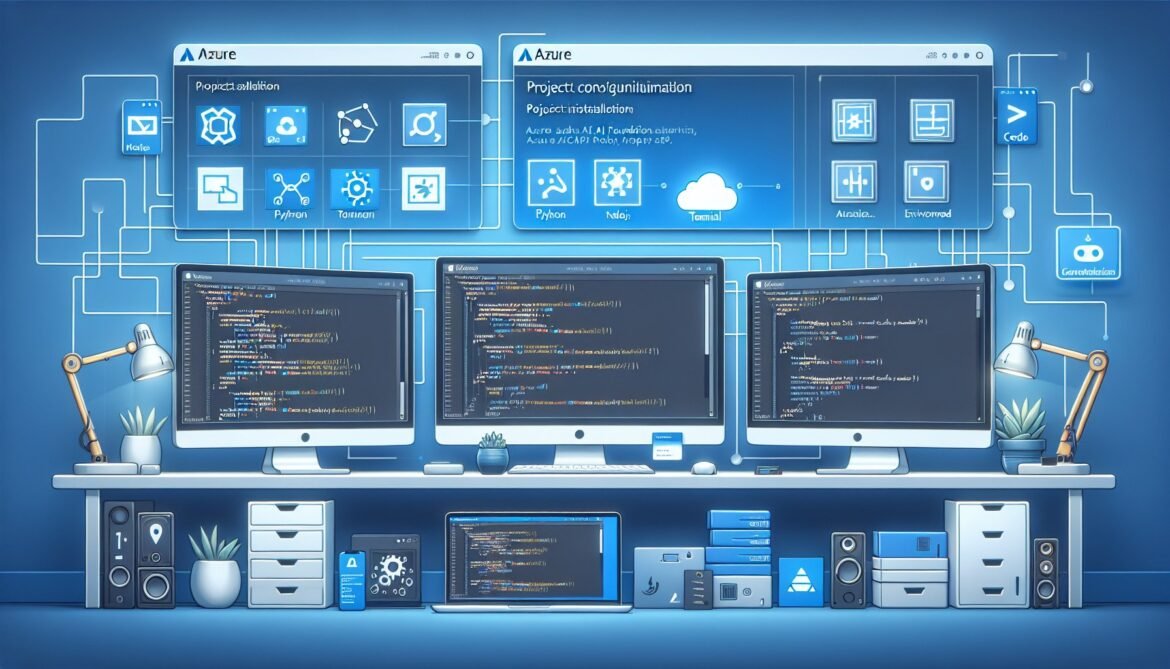
Building production-ready agentic AI systems on Azure AI Foundry requires proper foundation setup across your development environment, Azure infrastructure, and security configuration. This article provides step-by-step guidance for establishing a robust development foundation that supports local development, testing, and seamless deployment to production across Python, Node.js, and C# development stacks.
The setup process we cover here follows Microsoft’s recommended patterns for enterprise development, including proper authentication with Azure Entra ID, least-privilege access controls, and environment-based configuration management. By investing time in proper foundation setup, you avoid common pitfalls that plague production deployments and establish patterns that scale from initial prototypes through enterprise-wide agent deployments.
Prerequisites and Azure Account Configuration
Before beginning the setup process, ensure you have an active Azure subscription. If you do not have one, create a free Azure account which includes trial credits sufficient for development and testing of agent systems. The free tier provides access to all Azure AI Foundry capabilities needed for learning and prototyping.
Your Azure account requires specific role-based access control (RBAC) permissions to create and manage Azure AI Foundry resources. For creating projects and resources, you need one of these roles assigned at the subscription or resource group level: Azure AI Project Manager for managing Foundry projects specifically, Contributor for broader resource management capabilities, or Owner for full subscription-level permissions including role assignment.
For development work without creating new infrastructure, the Azure AI User role provides sufficient permissions. This least-privilege role allows developers to use existing projects, deploy models, create agents, and access project resources without the ability to modify infrastructure or manage access controls. Organizations should follow the principle of least privilege, granting developers only the Azure AI User role unless they specifically need infrastructure provisioning capabilities.
Understanding Azure AI Foundry project types is critical for setup. As of May 2025, Microsoft transitioned from hub-based projects to the new Foundry project model. Hub-based projects used connection strings for authentication and are being phased out. Modern Foundry projects use project endpoints in the format https://your-resource-name.services.ai.azure.com/api/projects/your-project-name and authenticate via Azure Entra ID. All code examples in this article use the current Foundry project model. If you have existing hub-based projects, plan migration to the new project model to access current SDK features and updates.
Development Environment Setup
Visual Studio Code provides the recommended development environment for Azure AI Foundry development across all programming languages. Install VS Code from the official website for your operating system. The Azure AI Foundry extension for VS Code integrates project management, model deployment, and agent development directly into your editor, significantly streamlining the development workflow.
Install the Azure AI Foundry extension by opening VS Code, navigating to the Extensions view, searching for Azure AI Foundry, and clicking Install. This extension provides IntelliSense support for SDK methods, integrated debugging capabilities for agent execution, direct access to project resources from the editor, and deployment automation from local development to Azure.
The C# Dev Kit extension is essential for .NET development. Search for C# Dev Kit in the VS Code extensions marketplace and install it. This official Microsoft extension provides comprehensive C# language support including debugging, testing, and project management capabilities optimized for modern .NET development.
Python Development Environment
Python development requires Python 3.9 or later, though Python 3.10 or 3.11 is recommended for optimal compatibility with Azure AI SDKs. Verify your Python installation by opening a terminal and running python –version or python3 –version. If Python is not installed or you have an older version, download the latest version from python.org or follow the VS Code Python Tutorial for operating system-specific installation guidance.
Critical for Python development is the use of virtual environments to isolate project dependencies. Never install Azure AI SDK packages into your global Python installation as this can create dependency conflicts and break system Python functionality. Instead, create isolated environments for each project.
Create a new project folder and open it in VS Code. Open the integrated terminal in VS Code and create a virtual environment using these commands. On Windows, run python -m venv .venv followed by .venv\Scripts\activate. On macOS and Linux, run python3 -m venv .venv followed by source .venv/bin/activate. Your terminal prompt should change to show the virtual environment name, indicating successful activation.
With the virtual environment activated, install the Azure AI Projects SDK which provides unified access to all Azure AI Foundry capabilities. Run pip install azure-ai-projects to install the stable production version, or pip install –pre azure-ai-projects for preview features. Install Azure Identity for authentication with pip install azure-identity. For agent development, install the agents package with pip install azure-ai-agents. If working with Azure OpenAI models directly, install pip install openai.
Create a requirements.txt file in your project root to track dependencies for reproducible environments. This file should contain azure-ai-projects, azure-identity, azure-ai-agents, and openai with version specifications as needed. Team members and deployment pipelines can then install exact dependency versions using pip install -r requirements.txt, ensuring consistency across development, testing, and production environments.
Node.js and TypeScript Development Environment
Node.js development requires Node.js version 18 or later with npm version 9 or later. Verify your installation by running node –version and npm –version in a terminal. If Node.js is not installed or requires updating, download the LTS version from nodejs.org. The LTS version provides long-term support and stability recommended for production applications.
TypeScript provides type safety and improved developer experience for Azure AI Foundry development. While not strictly required, TypeScript is strongly recommended for production applications. Install TypeScript globally with npm install -g typescript, then verify installation with tsc –version.
Create a new Node.js project by creating a project folder, opening it in VS Code, and initializing a new npm project with npm init -y. This creates a package.json file that tracks project dependencies and configuration. For TypeScript projects, initialize TypeScript configuration with npx tsc –init, which creates a tsconfig.json file with recommended compiler options.
Install the Azure AI Projects SDK for JavaScript with npm install @azure/ai-projects. Install Azure Identity for authentication with npm install @azure/identity. For working with Azure OpenAI models, install npm install @azure/openai. If using TypeScript, install type definitions for Node.js with npm install –save-dev @types/node.
The package.json file in your project root should include these dependencies in the dependencies section. For TypeScript projects, also include typescript and @types/node in the devDependencies section. This ensures that other developers and deployment pipelines install consistent package versions using npm install.
C# and .NET Development Environment
C# development requires the .NET SDK version 8.0 or later. Microsoft recommends installing the latest Long Term Support (LTS) version for production applications. Download the .NET SDK from the official .NET download page, selecting the appropriate installer for your operating system. Follow the installation instructions provided, then verify installation by opening a terminal and running dotnet –version. The response should display the installed SDK version number.
Create a new .NET console application by opening a terminal in your project folder and running dotnet new console -n AzureAIAgents. This creates a new console application project with the necessary project files and structure. Navigate into the project directory with cd AzureAIAgents.
Install required NuGet packages using the .NET CLI. Install the Azure AI Projects SDK with dotnet add package Azure.AI.Projects. Install Azure Identity for authentication with dotnet add package Azure.Identity. For agent development, install dotnet add package Azure.AI.Agents.Persistent. If working directly with Azure AI Inference, install dotnet add package Azure.AI.Inference.
The project file (AzureAIAgents.csproj) automatically tracks package dependencies as you add them. This file ensures that package restore operations install consistent versions across development environments and deployment pipelines. Team members can restore all project dependencies by running dotnet restore in the project directory.
Azure CLI Installation and Authentication
The Azure Command Line Interface (CLI) is essential for authentication and Azure resource management from your development environment. Install Azure CLI using the appropriate method for your operating system. On Windows, download and run the MSI installer from the Azure CLI installation page. On macOS, use Homebrew with brew install azure-cli. On Linux, use the package manager for your distribution following instructions on the Azure CLI installation page.
Verify Azure CLI installation by opening a new terminal and running az –version. This displays the installed version and confirms the installation was successful. Update Azure CLI to the latest version with az upgrade to ensure access to the newest features and fixes.
Authenticate with Azure by running az login in your terminal. This opens a browser window for interactive authentication. Sign in with the Azure account that has access to your Azure AI Foundry resources. After successful authentication, the CLI displays your subscriptions and sets a default subscription for subsequent commands.
If working in an environment without browser access, use device code authentication with az login –use-device-code. This displays a code and URL for authentication via another device. This method is particularly useful for remote development environments, containers, or SSH sessions.
The Azure CLI authentication creates a credential cache that SDK code uses automatically through DefaultAzureCredential. This pattern allows local development to use your personal credentials seamlessly while production deployments use managed identities, following security best practices without code changes.
Creating an Azure AI Foundry Project
Navigate to the Azure AI Foundry portal at ai.azure.com and sign in with your Azure credentials. If this is your first visit, review the introduction and click through the getting started guide. The portal provides a web-based interface for creating projects, deploying models, managing agents, and accessing project resources.
Create a new project by clicking Create Project in the portal. Provide a project name using lowercase letters, numbers, and hyphens. Choose an Azure subscription where the project resources will be created. Select or create a resource group to organize related Azure resources. Choose an Azure region close to your users for optimal latency. Common production regions include East US, West Europe, and Southeast Asia, though development projects can use any available region.
The project creation process provisions several Azure resources including the AI Foundry project itself, an AI Services resource for model access, a storage account for file and artifact storage, and a Key Vault for secure credential storage. This process typically completes within a few minutes. Once created, the project Overview page displays critical information needed for SDK configuration.
Locate and copy the project endpoint from the Overview page. This endpoint URL follows the format https://your-foundry-resource-name.services.ai.azure.com/api/projects/your-project-name and serves as the connection point for all SDK operations. Store this endpoint securely as it will be used throughout your application configuration.
Verify that your account has the necessary permissions by checking the Access Control (IAM) section of the project. Confirm that you have at least the Azure AI User role assigned. If you cannot create agents or deploy models, contact your Azure administrator to verify role assignments.
Deploying Your First Model
Before creating agents, deploy a language model that agents will use for reasoning and text generation. From your project in the Azure AI Foundry portal, navigate to the Model Catalog section. This catalog provides access to models from OpenAI, Microsoft, Meta, Mistral, and other leading providers.
For development and testing, GPT-4o-mini provides an excellent balance of capability and cost. Search for gpt-4o-mini in the model catalog and select it. Click Deploy to begin the deployment process. Provide a deployment name such as gpt-4o-mini-deployment. This deployment name is how your code will reference this specific model instance.
Configure quota allocation for the deployment. The deployment wizard displays available quota for your subscription and region. For development purposes, allocate sufficient tokens per minute (TPM) to handle your expected request volume. Agent operations can make frequent model calls, so allocate at least 120,000 TPM for GPT-4o-mini to avoid rate limiting during development. Production deployments require careful capacity planning based on expected agent workloads.
The deployment process typically completes within a few minutes. Once deployed, the model appears in your project’s Deployments section. Note the deployment name as you will use it in SDK configuration to specify which model your agents should use.
Verify the deployment by testing it in the Azure AI Foundry playground. Navigate to the Playground section, select your deployed model, and enter a test prompt such as “Explain what an AI agent is in one sentence.” The model should respond appropriately, confirming successful deployment and accessibility.
Environment Configuration for Python
Proper environment configuration separates sensitive credentials and environment-specific settings from application code, following the twelve-factor app methodology for cloud-native applications. Python development typically uses .env files for local configuration and environment variables for production deployment.
Create a .env file in your project root directory. This file stores configuration values that vary between development, testing, and production environments. Add the following configuration settings to your .env file: PROJECT_ENDPOINT with your Azure AI Foundry project endpoint URL, and MODEL_DEPLOYMENT_NAME with the name of your deployed model.
Install python-dotenv to load environment variables from the .env file during development with pip install python-dotenv. In your Python code, load environment variables at application startup using these imports and initialization: import os from dotenv import load_dotenv followed by load_dotenv() to load variables from .env file. Access configuration values using os.environ.get() or os.getenv() methods.
Create a .env.example file that documents required environment variables without containing sensitive values. This file should list PROJECT_ENDPOINT=https://your-resource.services.ai.azure.com/api/projects/your-project and MODEL_DEPLOYMENT_NAME=your-model-deployment as placeholders. Commit .env.example to version control while adding .env to your .gitignore file to prevent accidental credential exposure.
For production deployments on Azure, configure environment variables through the Azure portal, Azure CLI, or infrastructure-as-code tools like Terraform or Bicep. Azure App Service, Container Apps, and Functions all support environment variable configuration that applications access identically to local .env files, enabling environment-agnostic code.
Environment Configuration for Node.js
Node.js applications use similar environment variable patterns to Python with the dotenv package providing .env file support for development. Install dotenv as a development dependency with npm install –save-dev dotenv.
Create a .env file in your project root with the same configuration values as the Python example: PROJECT_ENDPOINT and MODEL_DEPLOYMENT_NAME with appropriate values for your Azure AI Foundry project.
Load environment variables in your application entry point by adding this code at the very beginning of your main file: import dotenv from ‘dotenv’ followed by dotenv.config(). For TypeScript projects, use import * as dotenv from ‘dotenv’. Access environment variables using process.env.PROJECT_ENDPOINT and process.env.MODEL_DEPLOYMENT_NAME throughout your application.
TypeScript projects benefit from type-safe environment variable access. Create a config.ts file that validates required environment variables exist and provides typed access to configuration values. This prevents runtime errors from missing configuration and provides autocomplete support for configuration access throughout the application.
Similar to Python development, create a .env.example file documenting required variables and add .env to .gitignore to prevent credential leakage. For production Node.js deployments on Azure, use platform environment variable configuration which process.env accesses transparently.
Environment Configuration for C#
C# and .NET applications use the User Secrets tool for local development credential storage and the Configuration system for production environment management. This approach keeps secrets out of source control while providing a consistent configuration access pattern.
Initialize user secrets for your project by navigating to your project directory and running dotnet user-secrets init. This adds a UserSecretsId to your project file and creates a secure storage location outside your project directory where secrets are stored.
Store the project endpoint using dotnet user-secrets set “Azure:ProjectEndpoint” “your-project-endpoint-url”. Store the model deployment name using dotnet user-secrets set “Azure:ModelDeploymentName” “your-model-deployment-name”. These values are encrypted and stored in a user-specific location that is not part of your source code repository.
Access user secrets and environment variables in your application using the Configuration system. Install the configuration package with dotnet add package Microsoft.Extensions.Configuration.UserSecrets. Build a configuration object that loads from multiple sources including user secrets for development and environment variables for production.
In your Program.cs or startup code, create a configuration builder that combines multiple configuration sources. This allows seamless transitions between development using user secrets and production using environment variables without code changes. Access configuration values through the IConfiguration interface with strongly-typed access patterns.
For production Azure deployments, configure settings through Application Settings in Azure App Service, environment variables in Container Apps, or Application Settings in Azure Functions. The configuration system transparently reads from these production sources using the same code that accesses user secrets during development.
Verifying SDK Installation and Connectivity
After completing environment setup, verify that SDK installation and Azure connectivity work correctly before beginning agent development. Create simple test scripts in each language to confirm configuration.
For Python, create a test script that imports required packages, loads environment variables, creates an AIProjectClient using DefaultAzureCredential, and retrieves project information to confirm connectivity. Run this script with your virtual environment activated. Successful execution confirms SDK installation, authentication, and network connectivity to Azure AI Foundry.
For Node.js or TypeScript, create a similar test script that imports the Azure AI Projects client, loads environment configuration, creates a client instance with DefaultAzureCredential, and tests connectivity. Run with node test.js or ts-node test.ts depending on your setup. Successful execution validates the complete development environment.
For C#, create a simple console application that builds configuration from user secrets, creates an AIProjectClient, and tests project connectivity. Run with dotnet run from your project directory. Successful execution confirms proper SDK installation, user secrets configuration, and Azure authentication.
Common issues during verification include authentication failures if Azure CLI login has expired, network connectivity problems if corporate firewalls block Azure endpoints, incorrect project endpoint URLs with typos or wrong format, missing RBAC permissions if your account lacks the Azure AI User role, or quota limitations if model deployments have insufficient capacity. Address these issues before proceeding to agent development to ensure a smooth development experience.
Development Workflow Best Practices
Establishing proper development workflow patterns early prevents issues as projects scale from initial prototypes to production systems. Follow these best practices for sustainable agent development.
Use version control for all project code with Git as the standard choice. Initialize a Git repository in your project root with git init. Create a comprehensive .gitignore file that excludes virtual environments (.venv/, node_modules/), environment files (.env), build artifacts (dist/, bin/, obj/), IDE configurations (.vscode/, .idea/), and dependency lock files that vary by developer (though requirements.txt and package.json should be committed). Commit your initial project structure including dependency manifests, configuration examples, and README documentation.
Separate development, staging, and production environments using distinct Azure AI Foundry projects for each environment. This isolation prevents development experiments from affecting production agents and allows testing of infrastructure changes in staging before production rollout. Use environment-specific configuration that points to the appropriate project endpoint for each environment.
Implement structured logging throughout your agent code using appropriate logging frameworks for each language: Python’s logging module, Winston or Pino for Node.js, or Microsoft.Extensions.Logging for C#. Configure different log levels for development (debug) and production (info or warning) environments. Azure Application Insights integrates with these logging frameworks to provide centralized log aggregation and analysis for production deployments.
Automate dependency updates to address security vulnerabilities and access new features. Use Dependabot for GitHub repositories, Azure DevOps dependency scanning, or similar automated tools that create pull requests for dependency updates. Review and test updates in development before applying to production to prevent breaking changes from impacting live systems.
Document setup procedures, configuration requirements, and development workflows in README files at your repository root. Include quick start instructions, prerequisite installation steps, environment configuration requirements, common development tasks, and troubleshooting guides. This documentation accelerates onboarding for new team members and serves as a reference for infrequent development tasks.
Security Considerations for Development
Security must be a priority from the earliest development stages rather than an afterthought during production deployment. Several security practices should be standard in your development workflow.
Never commit secrets, API keys, connection strings, or credentials to version control. Use the environment variable patterns described earlier for all sensitive configuration. Scan your repository history if you accidentally commit secrets and rotate any exposed credentials immediately. Tools like git-secrets can prevent accidental secret commits by scanning commit content before allowing pushes.
Use Azure Entra ID (formerly Azure Active Directory) authentication instead of API keys whenever possible. The DefaultAzureCredential pattern used throughout this article provides a robust authentication approach that works seamlessly from local development through production deployment. Local development uses your Azure CLI credentials, while production deployments use managed identities that never expose credential values to application code.
Implement least-privilege access controls by requesting only the minimum Azure RBAC roles needed for your tasks. Developers typically need only Azure AI User for agent development work. Avoid requesting Contributor or Owner roles unless infrastructure provisioning is explicitly part of your responsibilities. Follow your organization’s access request procedures and regularly review assigned permissions.
Regularly update dependencies to patch security vulnerabilities. Subscribe to security advisories for the SDKs and frameworks you use. Microsoft publishes security updates for Azure SDKs through standard package management channels. Apply security patches promptly while testing thoroughly to ensure updates don’t introduce regressions.
Enable Azure Key Vault integration for production deployments to manage application secrets centrally with audit logging, access controls, and automated rotation. While user secrets and environment variables suffice for development, production systems should retrieve sensitive configuration from Key Vault for enhanced security and compliance.
Cost Management During Development
Azure AI Foundry charges for model inference based on token usage, agent runtime, and storage consumption. Understanding cost drivers helps control expenses during development while ensuring production capacity for real workloads.
Development projects should use cost-effective models like GPT-4o-mini or GPT-3.5-turbo rather than larger expensive models unless specifically testing functionality that requires advanced reasoning. Model selection significantly impacts costs since token prices vary dramatically between models. Reserve expensive models like GPT-4 or GPT-o1 for production deployments or specific test scenarios requiring their capabilities.
Set up Azure Cost Management budgets and alerts for your development projects to prevent unexpected charges. Create a monthly budget appropriate for development work and configure email alerts at 50%, 75%, and 90% of budget consumption. This provides early warning of unusual spending patterns before costs become problematic.
Delete or de-allocate resources when not actively developing to minimize ongoing charges. Model deployments consume quota and incur costs even when unused. Stop deployments during evenings, weekends, or vacation periods when development is not occurring. Document the startup procedure so you can quickly restore the environment when resuming work.
Use development and production tiers appropriately. Azure AI Foundry provides a Developer Tier for model fine-tuning with no hosting fees, ideal for experimentation. Production tiers provide SLAs and guaranteed capacity but cost more. Match tier selection to actual requirements rather than over-provisioning development environments with production-grade resources.
Preparing for Production Deployment
Development environment setup lays the foundation for eventual production deployment. Several practices adopted during development streamline the transition to production.
Use infrastructure-as-code for all Azure resources rather than manual portal creation. Tools like Terraform, Bicep, or ARM templates ensure reproducible deployments across environments and provide audit trails of infrastructure changes. While portal creation is acceptable for initial learning and prototyping, transition to infrastructure-as-code before production deployment.
Implement continuous integration and continuous deployment (CI/CD) pipelines early in development. Azure DevOps, GitHub Actions, or similar CI/CD platforms can automate testing, security scanning, and deployment of agent applications. Start with simple pipelines that run tests on each commit and expand to automated deployments as confidence grows.
Design applications for cloud-native deployment from the start. Follow twelve-factor app principles including configuration through environment variables, stateless processes, dependency declarations, and log streaming. Applications designed with cloud deployment in mind require minimal modification for production hosting on Azure App Service, Container Apps, or Kubernetes.
Plan monitoring and observability approaches during development rather than adding them later. Instrument agent code with appropriate logging, include correlation IDs for request tracking across distributed systems, and design telemetry that provides insight into agent behavior and performance. Azure Application Insights integrates seamlessly with Azure AI Foundry and provides comprehensive monitoring for production agent systems.
What’s Next: Building Your First Agent
With your development environment properly configured across Python, Node.js, or C#, you are ready to begin building actual agent systems. Part 3 of this series covers single agent implementation using Semantic Kernel, including agent creation with custom instructions, tool integration for external API access, conversation state management across multiple turns, and streaming responses for real-time interaction.
The foundation established in this article provides the infrastructure and patterns needed for professional agent development. By following these setup procedures, you avoid common pitfalls, establish security best practices early, and create a development environment that scales from initial prototypes through enterprise production deployments.
The time invested in proper foundation setup pays dividends throughout the development lifecycle. Teams that establish strong foundational patterns experience fewer production issues, smoother deployments, and greater developer productivity as projects scale in complexity and scope.
References
- Microsoft Learn – Get started with Microsoft Foundry SDKs and Endpoints
- Microsoft Learn – Microsoft Foundry Quickstart
- Microsoft Learn – Quickstart: Create a new Foundry Agent Service project
- Microsoft Learn – Set up your development environment
- PyPI – Azure AI Projects client library for Python
- Microsoft Learn – How to get started with Azure AI Foundry SDK
- Microsoft Workshop – Build your code-first agent with Azure AI Foundry