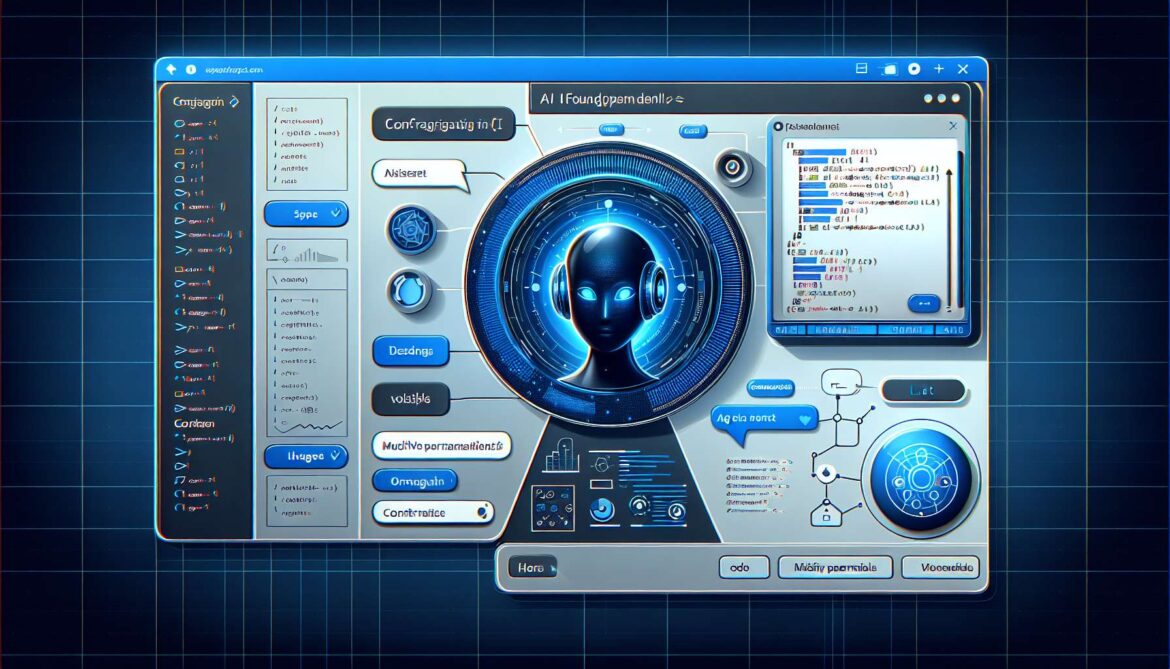
Welcome back to our Azure AI Foundry agent series! In Part 1, we laid the foundation by setting up our project and deploying our first model. Now comes the exciting part, we’re going to bring our AI agent to life. In this tutorial, you’ll transform that deployed model into an intelligent customer support agent capable of understanding context, searching through documents, and generating helpful responses with proper citations.
By the end of this article, you’ll have a working agent that can answer customer questions by searching through your knowledge base using Retrieval Augmented Generation (RAG). Let’s dive in!
Quick Recap from Part 1
Before we begin, let’s quickly review what we accomplished:
- Created an Azure AI Foundry project
- Deployed the gpt-4o-mini model
- Explored the Azure AI Foundry interface
- Located our project endpoint for API access
If you haven’t completed Part 1, please go back and set up your environment first. You’ll need an active project with a deployed model to continue.
What We’re Building Today
In this tutorial, we’ll create a Customer Support Agent with these capabilities:
- Knowledge-Based Responses: Search through documentation, FAQs, and support articles
- Contextual Understanding: Maintain conversation history for personalized interactions
- Proper Citations: Provide sources for all information
- File Search Tool: Retrieve relevant information from uploaded documents
- Professional Tone: Follow custom instructions for brand consistency
Step 1: Creating Your First Agent in the Playground
The Agent Playground is your visual workspace for designing and testing agents. Let’s create our customer support agent.
Access the Agent Playground
- Sign in to ai.azure.com
- Navigate to your project (the one you created in Part 1)
- In the left sidebar, click “Agents”
- Click “Create an agent” button
Configure Basic Agent Settings
You’ll see the Agent creation interface. Fill in the following:
- Agent Name: “customer-support-agent”
- Model: Select your deployed “gpt-4o-mini” from the dropdown
- Description (Optional): “AI agent for handling customer support inquiries with knowledge base search”
Step 2: Writing Effective System Instructions
System instructions define your agent’s personality, behavior, and capabilities. This is where you set the ground rules for how your agent should interact with users.
System Instructions Best Practices
When writing system instructions, you should:
- Define the Primary Objective: What is your agent’s main goal?
- Specify Responsibilities: What tasks should it perform?
- Describe Expected Inputs: What kinds of queries will it receive?
- Set Tool Usage Guidelines: When and how should tools be called?
- Establish Tone and Style: How should it communicate?
Example System Instructions
Here’s a comprehensive set of instructions for our customer support agent. Paste this into the “Instructions” field:
You are a helpful and professional customer support agent for TechCorp Solutions. Your primary objective is to assist customers with their inquiries by providing accurate, relevant, and timely information.

Your Responsibilities:
- Answer customer questions about products, services, policies, and procedures
- Search through the company knowledge base using the File Search tool when needed
- Provide clear, concise answers with proper citations from source documents
- Maintain a friendly, professional, and empathetic tone
- Escalate complex issues to human agents when appropriate

Input You May Receive:
- General product questions
- Technical support requests
- Policy inquiries
- Account-related questions

Tool Usage Guidelines:
- ALWAYS use the File Search tool when customers ask about specific products, features, or policies
- Use search results to generate responses - don't rely solely on your base knowledge
- When information comes from the knowledge base, cite the source document
- If search results don't contain relevant information, acknowledge this and offer alternatives

Response Format:
- Start with a direct answer to the customer's question
- Provide supporting details from the knowledge base when available
- Always cite sources using format: [Source: document-name]
- End with a helpful follow-up question or offer additional assistance
- Keep responses concise but informative

When to Escalate:
- Customer requests to speak with a human
- Issues requiring account access or sensitive data
- Complaints that need manager intervention
- Technical problems beyond the knowledge base scope

Remember: You represent the company's brand. Always be helpful, accurate, and customer-focused.
Step 3: Understanding RAG (Retrieval Augmented Generation)
Before we add tools, let’s understand the RAG pattern—the backbone of knowledge-grounded AI agents.
What is RAG?
RAG combines the power of large language models with your own data. Instead of relying solely on the model’s training data, RAG enables your agent to retrieve relevant information from external sources and use that information to generate accurate, up-to-date responses.
flowchart LR
    A[User Query] --> B[Query Vectorization]
    B --> C[Vector Search]
    C --> D[Retrieve Relevant Docs]
    D --> E[Augment Prompt]
    E --> F[LLM Generation]
    F --> G[Response with Citations]

    H[(Knowledge Base)] -.-> C
    I[(Vector Store)] -.-> C

    style A fill:#0078d4,color:#fff
    style G fill:#50e6ff,color:#000
Why RAG Matters for Enterprise AI
- Accuracy: Responses are grounded in your actual documentation
- Current Information: Update your knowledge base without retraining the model
- Transparency: Cite sources so users can verify information
- Cost-Effective: No need for expensive model fine-tuning
- Control: Keep sensitive data in your own environment
Step 4: Adding the File Search Tool
Now let’s equip our agent with the File Search tool, which enables RAG capabilities.
Enable File Search
- In the Agent Playground, scroll to the “Tools” section on the right panel
- Click “Add tool”
- Select “File Search” from the available tools
- Click “Create tool”
The File Search tool automatically handles document chunking, embedding generation, vector storage, and semantic search.
Step 5: Uploading Your Knowledge Base
Your agent needs data to search through. Let’s upload some documents to create your knowledge base.
Sample Knowledge Base Content
Create a sample FAQ document and save as “customer-faq.txt”:
# Customer Support FAQ

## Product Information

What is our return policy?
We offer a 30-day money-back guarantee on all products. If you're not satisfied with your purchase, contact our support team within 30 days of delivery for a full refund.

How long does shipping take?
Standard shipping takes 5-7 business days. Express shipping (2-3 business days) is available for an additional fee.

Do you offer technical support?
Yes! Our technical support team is available Monday-Friday, 9 AM - 6 PM EST via email at support@company.com or live chat.

## Account Management

How do I reset my password?
Click "Forgot Password" on the login page, enter your email address, and we'll send you a reset link. The link expires after 24 hours.

Can I change my subscription plan?
Yes, you can upgrade or downgrade your subscription at any time from your account settings.
Upload Files
- Click “Manage files” in the File Search tool section
- Select “Create New Vector Store”
- Name your vector store: “customer-support-kb-2025”
- Click “Upload files” and select your document
- Wait for processing to complete
flowchart TD
    A[Upload Documents] --> B[Text Extraction]
    B --> C[Document Chunking]
    C --> D[Generate Embeddings]
    D --> E[Store in Vector DB]
    E --> F[Create Search Index]
    F --> G[Ready for Queries]

    C --> C1[2000 chars per chunk]
    D --> D1[1536D vectors]
    E --> E1[Cosmos DB storage]

    style A fill:#0078d4,color:#fff
    style G fill:#50e6ff,color:#000
Step 6: Testing Your Agent
Now let’s test our agent with real queries!
Test Queries
Test 1: Basic Knowledge Retrieval
What is your return policy?The agent should search your knowledge base and provide a response with a citation.
Test 2: Multi-Part Question
I want to return a product I bought 2 weeks ago. How do I do that and how long will it take?Test 3: Conversational Context
What are your shipping options?
(Wait for response)
How much does express shipping cost?
Interpreting Responses
Look for these indicators of good performance:
- Citations: References to source documents
- Accuracy: Information matches your documents
- Relevance: Answers directly address the question
- Tone: Follows your system instructions
- Tool Usage: You’ll see “Searching files…” when File Search activates
Step 7: Code Preview for Part 3
Here’s a preview of the Python code we’ll implement in Part 3:
from azure.ai.projects import AIProjectClient
from azure.identity import DefaultAzureCredential

# Create project client
project = AIProjectClient.from_connection_string(
    credential=DefaultAzureCredential(),
    conn_str="your-project-endpoint"
)

# Create agent
agent = project.agents.create_agent(
    model="gpt-4o-mini",
    name="customer-support-agent",
    instructions="Your system instructions here...",
    tools=[{"type": "file_search"}]
)

# Create thread and run
thread = project.agents.create_thread()
message = project.agents.create_message(
    thread_id=thread.id,
    role="user",
    content="What is your return policy?"
)

run = project.agents.create_and_process_run(
    thread_id=thread.id,
    assistant_id=agent.id
)

# Get response
messages = project.agents.list_messages(thread_id=thread.id)
print(messages.data[0].content[0].text.value)
Key Concepts Recap
- System Instructions define agent behavior and personality
- RAG combines LLMs with your own data for accurate responses
- File Search Tool enables semantic search through your documents
- Vector Stores hold embedded representations of your content
- Threads maintain conversation context and history
- Citations provide transparency and verifiability
What’s Next in Part 3?
In the final part of this series, we’ll take your agent to production:
- Setting up local development environment
- Writing production-ready code in Python, Node.js, and C#
- Implementing error handling and retries
- Adding monitoring and logging
- Deploying to Azure Container Apps
- Cost optimization with Model Router
- Security best practices
- Performance tuning and scaling
We’ll transform your playground agent into a production-ready application.
References
- Microsoft Learn – Azure AI Foundry Agent Quickstart (https://learn.microsoft.com/en-us/azure/ai-foundry/agents/quickstart)
- Microsoft Learn – Azure AI Foundry Tools Overview (https://learn.microsoft.com/en-us/azure/ai-foundry/agents/how-to/tools/overview)
- Microsoft Learn – RAG in Azure AI Search (https://learn.microsoft.com/en-us/azure/search/retrieval-augmented-generation-overview)
- Microsoft Learn – Vector Search Overview (https://learn.microsoft.com/en-us/azure/search/vector-search-overview)
- Medium – Agentic RAG with Semantic Kernel (https://medium.com/data-science-collective/step-by-step-guide-on-building-agentic-rag-with-microsoft-semantic-kernel-and-azure-ai-search-3dcee5bf38ba)
This article is Part 2 of a 4-part series on building AI agents with Azure AI Foundry in 2025.